Use this article to integrate Bazaarvoice Ratings & Reviews into your Shopify 2.0 store to display UGC. You will learn how to:
To add Ratings & Reviews, complete the following steps.
Step 1: Publish and display content on your Shopify store
Follow these steps to:
- Display ratings, reviews, and questions and answers on your product pages
- Display inline ratings on your collection pages
Product page
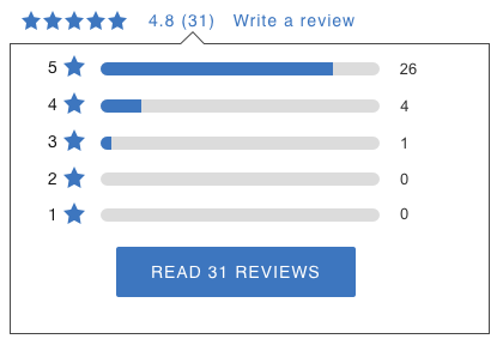
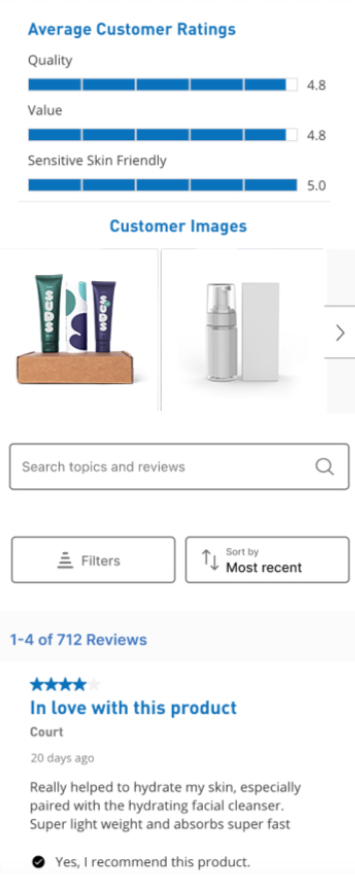
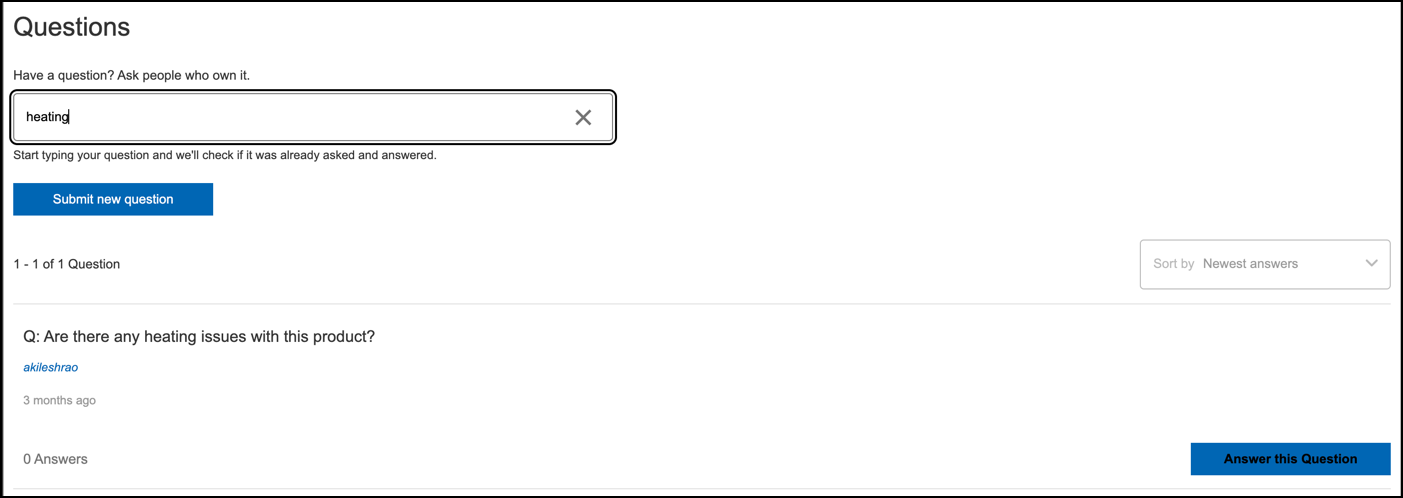
The following table shows the product page app blocks used to display Rating Summaries, Reviews, and Questions & Answers on your product pages. To learn more about displaying content, refer to the Overview of display article.
| App block | Description | Code snippet (use if Add Block is not supported in your theme) |
|---|---|---|
| Ratings Summary |
Display a product’s average star rating and a link to leave a review. The ratings summary is usually placed at the top of the page near the product title.
|
<div data-bv-show="rating_summary"
data-bv-product-id="{{product.id}}"></div>
|
| Reviews |
Display a list of ratings and reviews for a product. This list is usually placed below the product image and description.
|
<div data-bv-show="reviews"
data-bv-product-id="{{product.id}}"></div>
|
| Questions & Answers |
Display consumer questions and answers for a specific product. Questions & Answers are usually placed below the product image and description.
|
<div data-bv-show="questions"
data-bv-product-id="{{product.id}}"></div>
|
To add product page blocks follow these steps:
- Open your Shopify theme.
- In your current theme, select Customize.
- From the drop-down menu at the top of the page, select Products > Default product.
- From the menu on the left side of the page, add a block or section to your product template.
- If necessary, move the blocks and sections you’ve added to where you want them to appear in the product template.
- Save your changes.

CSS |
div[data-bv-show] { display: block !important; } |
Collection page
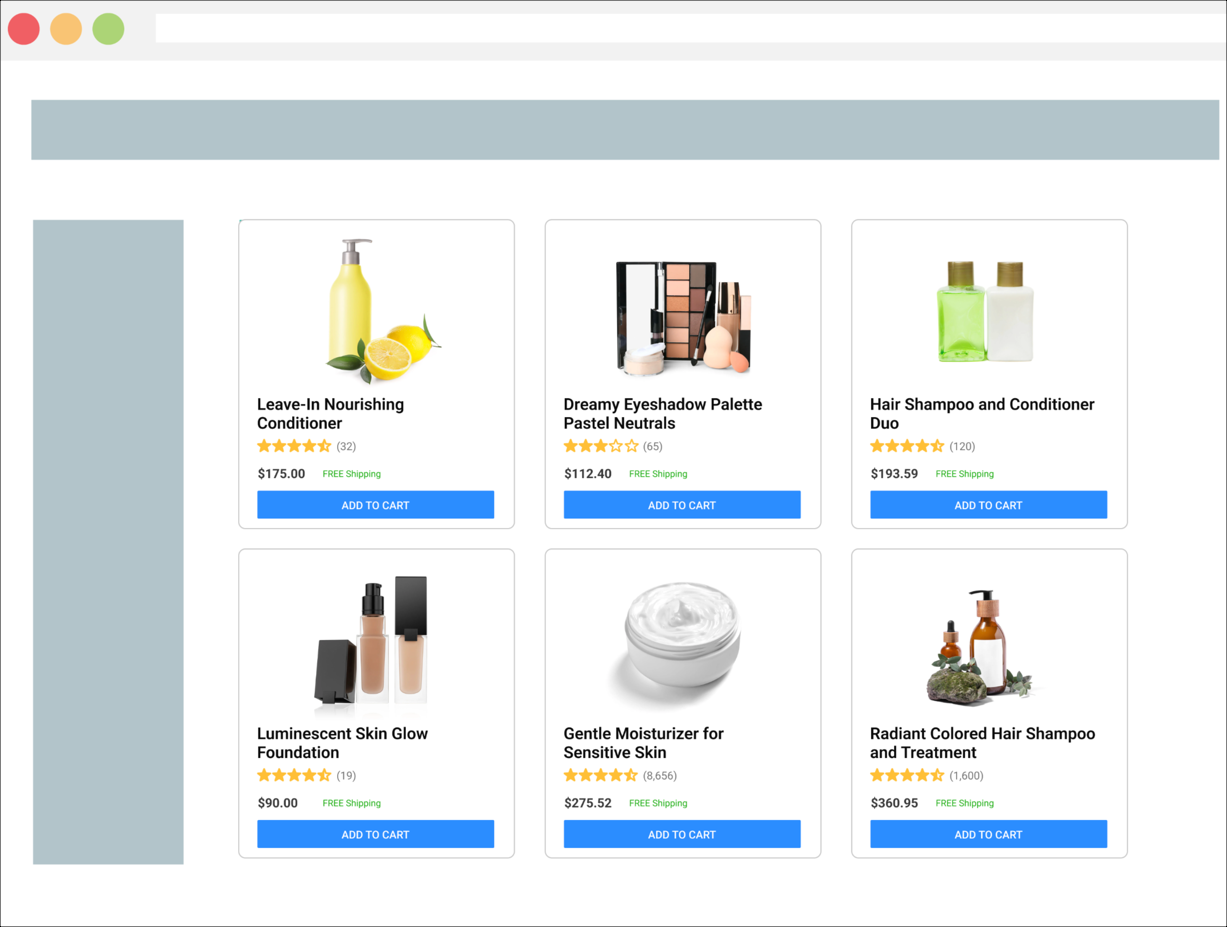
The following table shows the collection page app blocks used to display Product Card and Grid Ratings on your collection pages. These app blocks display inline ratings. The following image shows an example of inline ratings.
|
App block
|
Description
|
|---|---|
|
Product Card Ratings
|
Displays inline ratings on collection pages that use a product card style. Refer to the Inline ratings article to learn more.
|
|
Product Grid Ratings
|
Displays inline ratings on collection pages that use a product grid style. Refer to the Inline ratings article to learn more.
|
Follow these steps to display Product Card or Product Grid Ratings that show average star rating for each featured product. Select the code integration steps if your theme does not support app blocks:
|
App block steps
|
To display Product Card Ratings that show an average star rating for each featured product complete the following steps:
To display Product Grid Ratings that show an average star rating for each featured product complete the following steps:
|
||
| Code integration steps |
Your collection pages can display inline ratings that show an average star rating for each featured product. To add inline ratings to your collection pages:
|
 .
.

Step 2: Update your SEO settings
{{ product | structured_data }} tag, since there is no editable JSON-LD block to modify. Bazaarvoice is aware of this and investigating. Configure your SEO settings in product pages only to ensure search engines index your reviews:
- Open your Shopify Theme.
-
In your current theme, select Edit code from the menu
 .
.
- From the list of folders on the left side of the page, find the file containing the JSON LD block:
JSON |
<script type="application/ld+json"> |
-
In your current theme, select Download theme file from the menu .
- In the files you’ve downloaded, search for the JSON LD block and note which files contain it.
- Return to Shopify and select the file or files containing the JSON LD block.
-
Add
"@id" : "{{shop.url}}{{ product.url }}",to the JSON LD block, as the following example shows:
HTML<script type="application/ld+json"> { "@context" : "https://schema.org", "@type" : "Product", "@id" : "{{shop.url}}{{ product.url }}", … } </script>
- Save your changes.