- Display content is updated continually as moderation approves submitted content.
- Native and syndicated reviews that pass moderation are included in display.
- All locales are supported.
- Product families are supported.
Rating summary
Rating summary displays the following information about the specified product ID:
- Five-star image indicating the average product rating
- Total number of reviews for the product
- Percent (%) of customers who recommend the product
- Interactive histogram that provides a rating breakdown
- Number of questions and answers for the product
It also provides Write a review and Ask a question links.
Rating summary is typically placed at the top of the PDP next to the product image to provide a summary of the ratings. Here is an example:
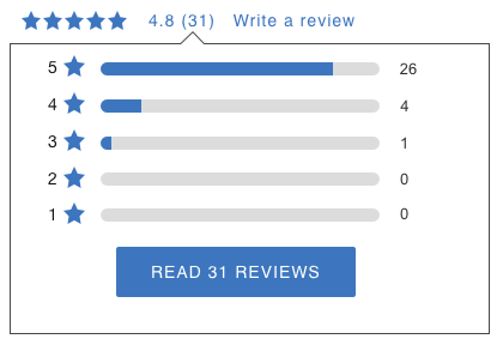
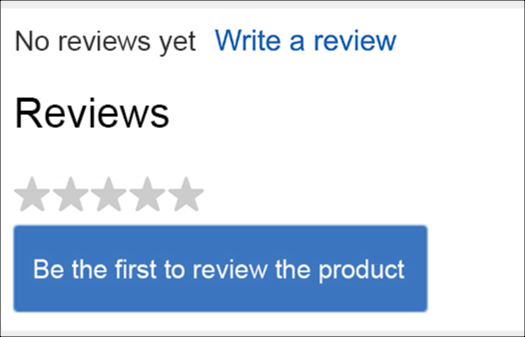
You can display rating summary with average rating stars and the number of reviews, or opt for displaying unselected rating stars when there are no ratings and reviews. You can also choose to hide the rating stars or display the text reading No reviews yet on the PDP when no consumer reviews are available for the product. Here is an example:
Complete these steps to implement the rating summary:
- Contact Bazaarvoice support to enable this feature in your Ratings & Reviews implementation.
- Add rating summary to the PDP.
- If reviews will be hidden behind an interface component, such as a tab, add custom code to show the content.
- Customize the fonts and icons used in the rating summary.
- Customize the text used for titles, links, and other elements of the display.

Reviews
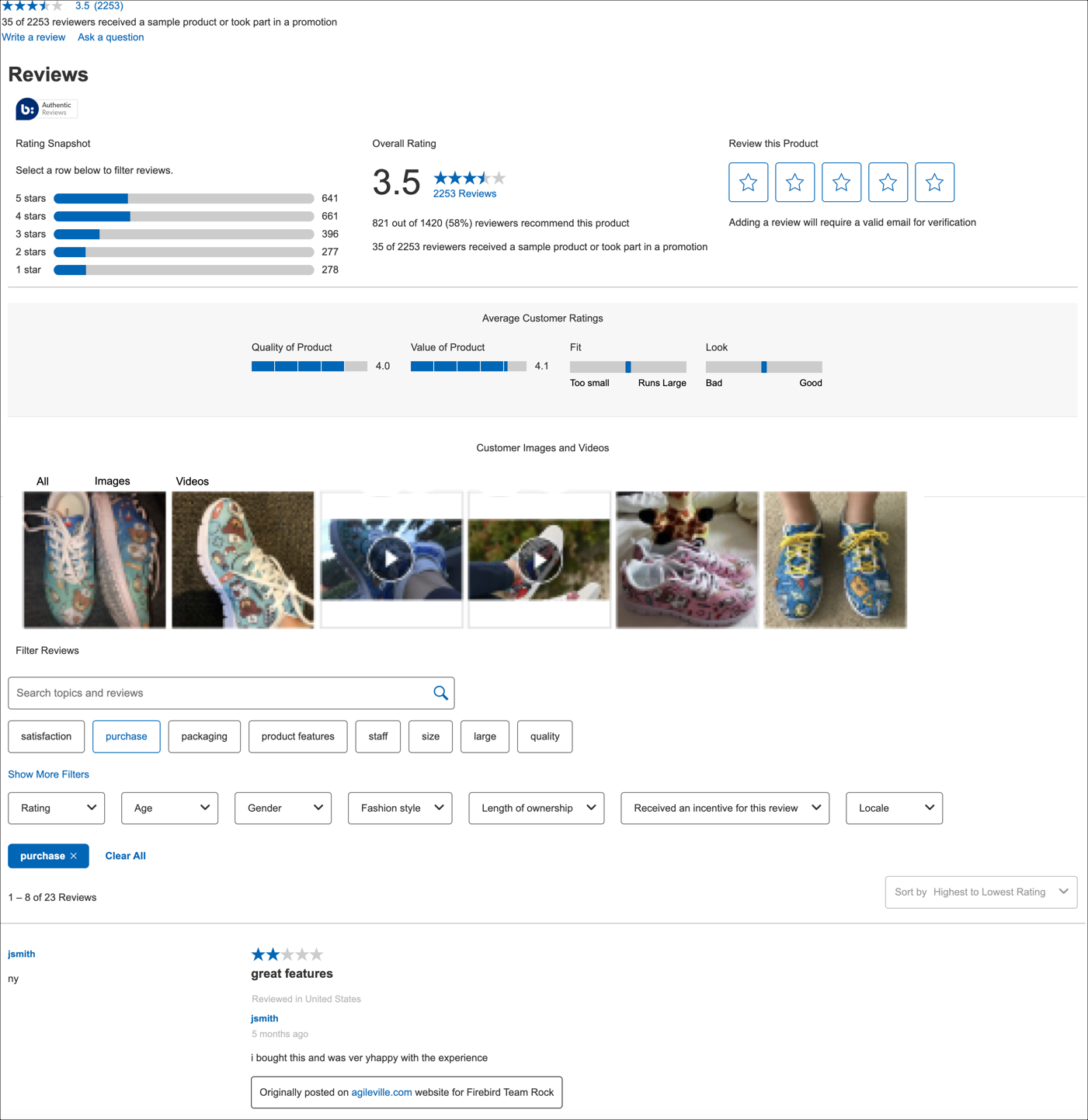
- Star rating on the histogram: Filter reviews based on the star rating.
- Search field: Enter keywords to search within reviews.
- Keywords: Use specific keywords to narrow down the review results. The keywords are listed in descending order based on the number of reviews in which they appear.
- Filters: Apply various filters (age, rating, gender, incentivized reviews, non-incentivized reviews, and so on) to refine the review results. To automatically recalculate Rating Summary in the R&R container, Overall Rating, and average customer ratings based on the applied filters, you must enable Apply filters to Rating Summary in your configuration. This setting applies to all available filters.
- Sort by dropdown: Sort the reviews and media by different criteria. For example, if you select an option from the Sort by dropdown, the reviews section and the carousel will display the reviews, images, and video based on the selected option.
- Verified purchaser: Filter the review list to show only reviews from verified purchasers. This filter is disabled by default; you must enable it in your configuration.
To learn more about using the filters, watch the Submitting your product Ratings & Reviews video in the Product display page V2.
Optimized mobile view for Filter and Sort by features
For mobile devices, you can display the Reviews section in a view that adjusts the layout to fit smaller screens. In this view, the Filter and Sort by features are displayed in a mobile-optimized format by default.
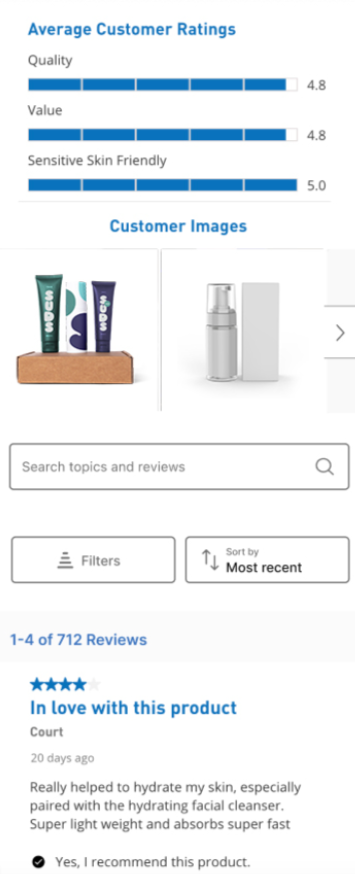
If you exclude this optimized mobile view, these features will appear similar to the desktop version, with elements stacked vertically. To configure these features, use the optimized mobile view option in the Style Editor. To learn more about the configuration options in the Style Editor, refer to Customize display modules.
Here is an example of a desktop layout for Reviews:
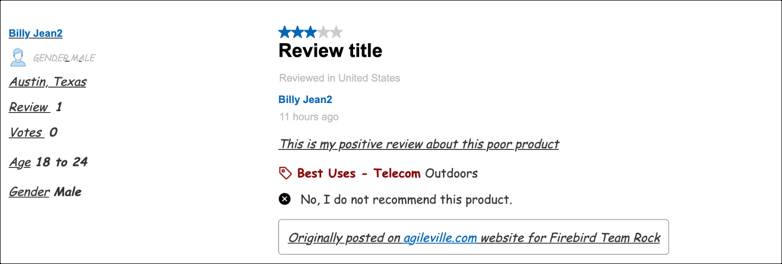
When publishing syndicated reviews, the review statement includes the product for which the review was originally written on a particular website.
Here is an example:
When you enable Native Video in your implementation, consumers will see three media tabs on the Product display page:
- All—All photos and videos
- Images—Only photos
- Videos—Only videos
Each video shows either the uploaded title or a default title of Review video. When a consumer selects a video from the carousel:
- A modal opens with the video on the left and the review details on the right.
- If closed captions are available, consumers can turn them on.
- Closed captions are autogenerated and displayed in the language spoken in the video. They are not translated to the site locale and are not subtitles.
- If no captions are available, the message No captions available will appear when consumers turn on closed captions.
Complete the following steps to implement reviews:
- Add code to the PDP.
- If reviews are hidden, add code to show the correct tab or container.
- Customize the fonts and icons used in reviews.
- Customize the text used for titles, links, and other elements of the display.
- Set options for displaying reviews on your site.
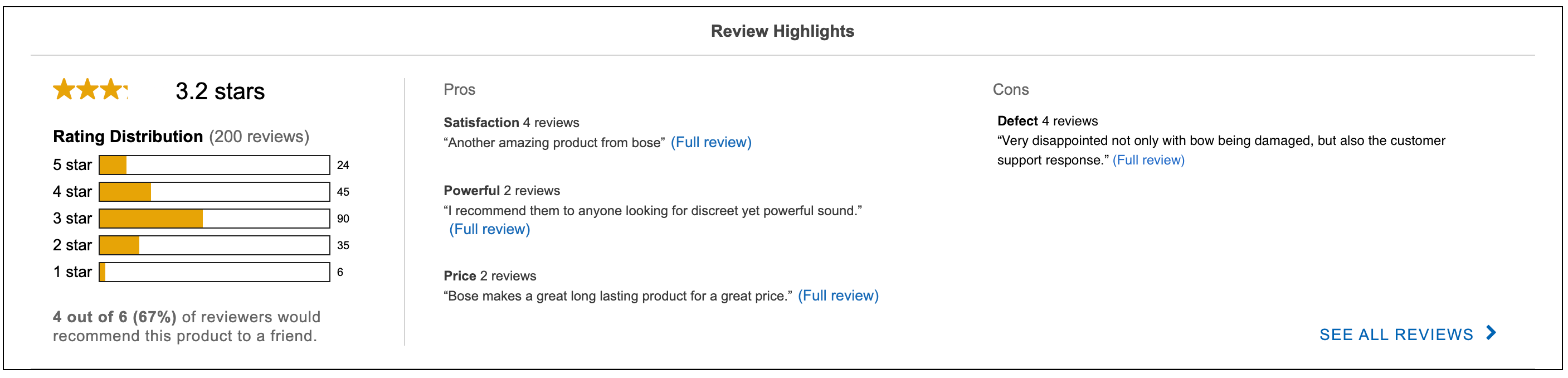
Review Highlights
Implement Review Highlights on your product display pages (PDPs) to show:
- A high-level summary of positive, neutral, and negative ratings for the product.
- A compilation of review excerpts that capture common consumer sentiments about the product.
To generate and display Review Highlights for a product, Bazaarvoice analyzes the ratings and reviews data belonging to that product. Shoppers gain an immediate overview of different consumer sentiments, without the effort of reading through individual reviews, though they can expand highlights to see the full reviews.
Here is an example:
Before implementing Review Highlights, be aware that:
- The Review Highlights display is separate from the reviews display.
- Review Highlights can be implemented for English locales only.
- Native and Network reviews are included (including reviews shared between product variants).
- Incentivized reviews are not included.
To implement Review Highlights:
- Contact Bazaarvoice Support to enable this feature in your Ratings & Reviews implementation.
- Add code to the PDP.
- Turn on display and customize the styles used by Review Highlights. These are not inherited from reviews display.
- Customize the text used for titles, links, and other elements of the display.

 in the Bazaarvoice Developer Portal.
Questions & Answers
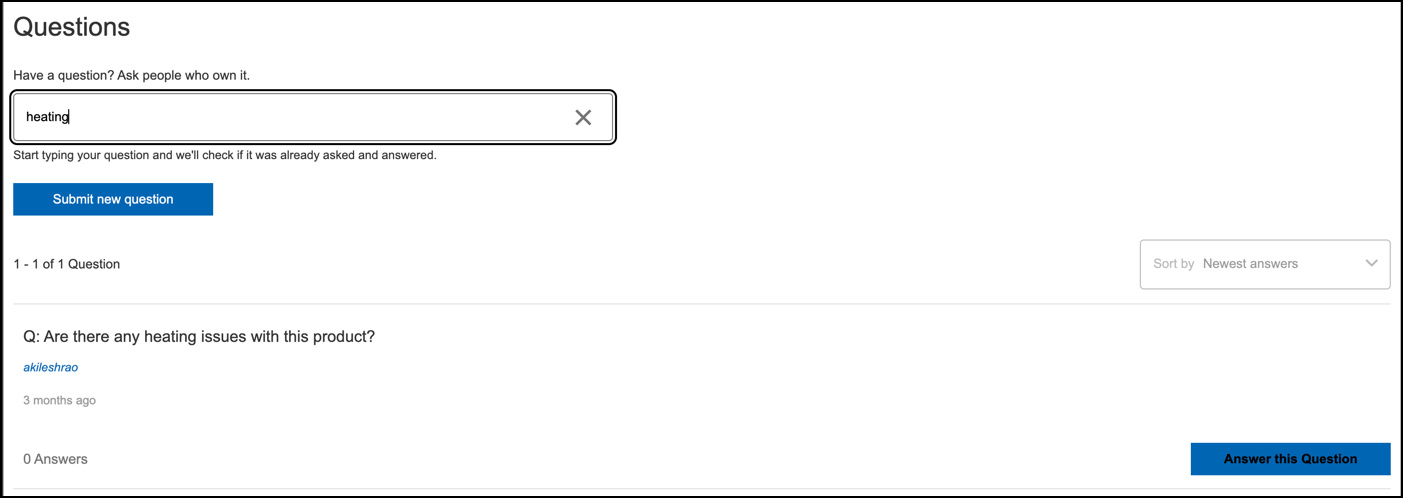
With Questions & Answers implemented on your product display pages, you can display consumer questions about products, along with answers provided by brands and consumers. Questions about a product are typically placed below the product image and description.
Here is an example:
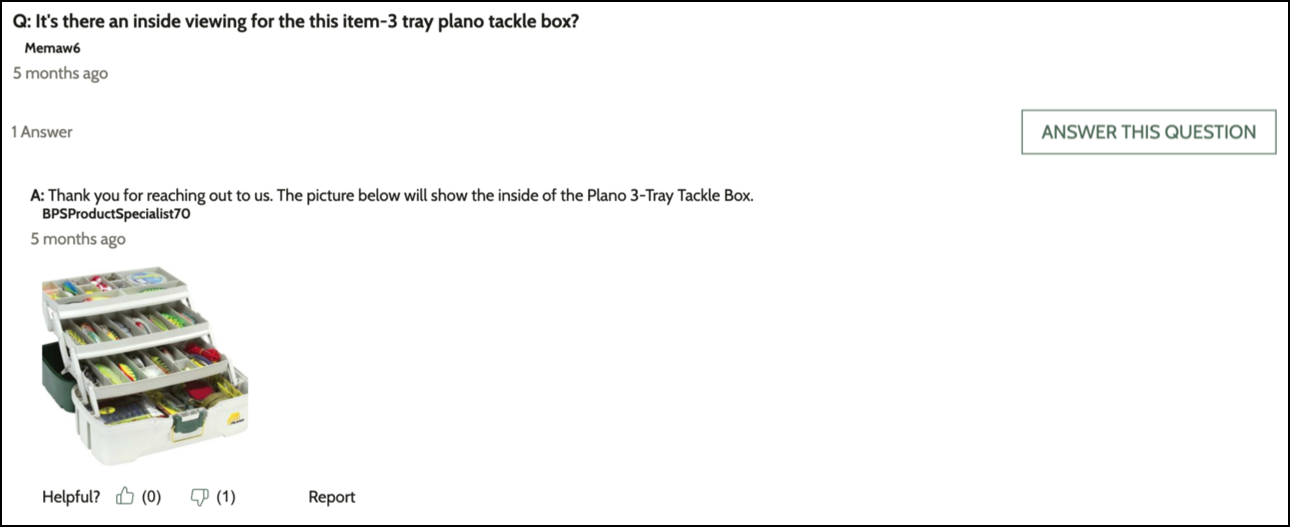
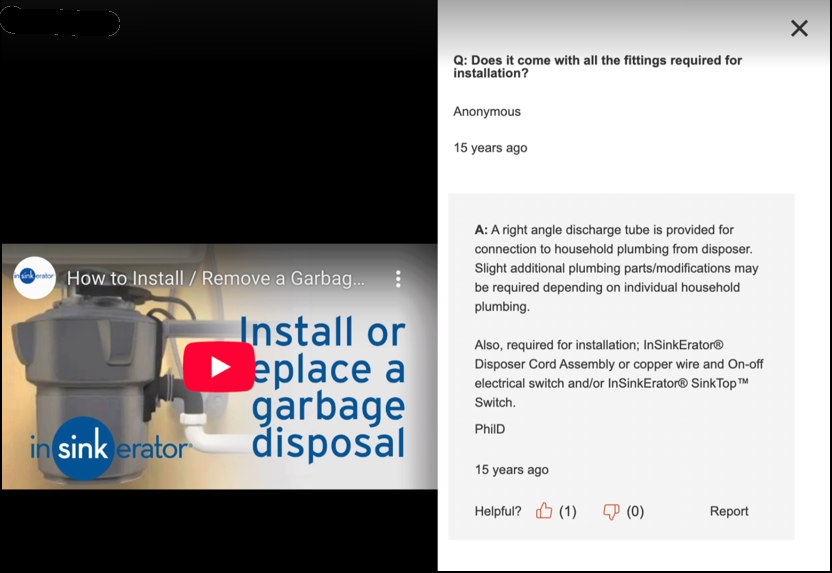
The Questions & Answers also provides a more engaging content experience by displaying the photos and videos in answers. If you have uploaded photos or YouTube video links with the answers provided in the Portal, consumers can view this media directly on the PDP. The photos and video thumbnails are displayed with the corresponding answers. You can upload a maximum of six photos and one video for each answer.
Here is an example of an answer that includes media:
|
|
|---|
Complete the following steps to implement Questions & Answers:
- Add code to the PDP.
- If reviews will be hidden, add code to show the correct tab or container.
- Turn on display and customize the fonts and icons used by Questions & Answers.
- Customize the text used for titles, links, and other elements of display.
- Set options for displaying questions and answers on your site.
