Bazaarvoice Reviews Collect application enables customers to submit product reviews from their Order History page. By embedding this feature on your website, you improve the submission experience and allow authenticated customers to share product reviews directly within their purchase history.
How Reviews Collect works
When integrated into your Order History page:
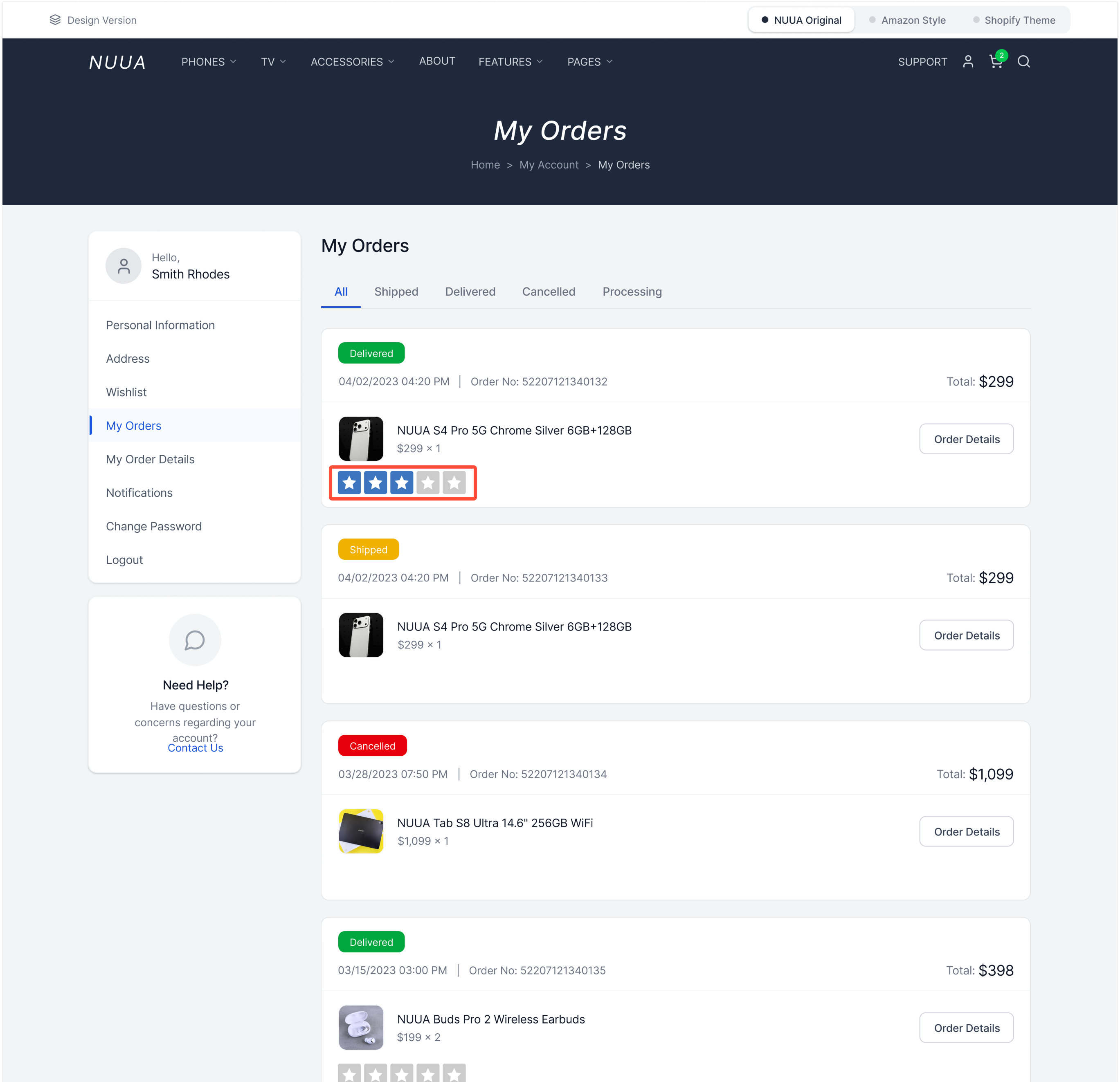
- Rating stars display on the order summary to enable review collection.
- Selecting a star rating opens the Bazaarvoice-hosted Review Submission form.
- Customers can complete and submit their reviews without being redirected to another page.

The following example shows how to integrate the Reviews Collect rating stars (highlighted in red) into your website.
Before you begin
Your implementation must meet the following requirements:
- V2 clients only — Available only for clients on the Bazaarvoice V2 platform.
- Bazaarvoice-hosted submission — Designed for use with the Bazaarvoice Review Submission form.
- Single review configuration — Supports only One review Per User configuration.
Integrate Reviews Collect on your website
- Generate a user authentication string (UAS)
- Encode the UAS
- Include the UAS token
-
Add the BV loader
The Reviews Collect rating stars displays with each order in the order history page allows consumers to rate each product purchased.
-
Add the following HTML to your order history page where you want to display the rating stars: HTML
<div data-bv-show="reviews_collect" data-bv-product-id="YOUR_PRODUCT_ID" data-bv-campaign-id="BV_ORDER_HISTORY_REVIEWS_COLLECT"></div>
-
Ensure the
data-bv-showdata attribute instructs the BV loader to display the rating stars anddata-bv-product-idmatches theExternalIdin your Bazaarvoice product catalog. -
Use the default Campaign ID
BV_ORDER_HISTORY_REVIEWS_COLLECTto distinguish these reviews from PDP submissions in your reports.
If you are using BV loader (bv.js), set up integration code to include the generated UAS token in a meta element and the Bazaarvoice UAS token in the page head element.
Include this token on any pages where you have order history integration code, such as on your product display pages. This property should be provided when users are signed into your site’s authentication system.
For example:
HTML |
<head> ... <meta name="bv:userToken" content="17743067190f0343f24f7" > ... </head> |
Always place meta tags (such as userToken) before the BV loader () script tag. When the BV loader loads, it only sees what is visible on the page when the script loads. If a meta tag is placed after the BV loader, it won't be visible to the BV loader at load time. If it is placed before the BV loader, it will be visible.
You can also include the Bazaarvoice UAS token as part of current page URL parameters, for example:
HTML |
bvuserToken=17743067190f0343f24f75df730dfe58646174653d323031332d30352d3031267573657269643d7465737475736572313233 |
For users who are not signed in to your authentication system, omit the userToken property.
Configure Reviews Collect
- Sign in to the Bazaarvoice Portal, select the settings icon, and select Configuration.
- From the Site Manager, edit the implementation you want to configure.
-
Select Style Editor to preview Reviews Collect.
Note: If Reviews Collect is not visible in the Style Editor, contact Bazaarvoice Support to enable the Review Submission form in your implementation. - Deploy the changes to your implementation.
Key recommendations
To ensure accurate review collection, follow these recommendations when you implement Reviews Collect on an Order History page:
-
Provide the UAS token containing order number: Ensure that you pass the userToken parameter correctly. This ensures that the review is tied to a verified transaction and a logged-in user, which increases the authenticity of your content. To learn how to include the order number, refer to Site authentication.
-
Use the default campaign ID: Bazaarvoice recommends passing the following campaign ID for this implementation to distinguish these reviews from PDP submissions or submissions from any other sources in your reports.
BV_ORDER_HISTORY_REVIEWS_COLLECT
To learn how to add the campaignId parameter to your submission configuration, refer to the Campaign ID documentation.
Reviews Collect FAQ
Can I use Reviews Collect if I use hosted authentication?
Yes. You can implement Reviews Collect on any webpage. When customers submit reviews, they will follow your existing Hosted Authentication workflow, verifying their identity through email after submission.
Will reviews submitted through Reviews Collect application automatically receive a Verified Purchaser badge?
No. To display the badge, you must include a User Token (UAS) that sets the verifiedpurchaser value to true on the page where the application is implemented.
Is Reviews Collect rating stars hidden if a customer has already reviewed the product?
No. If a customer has already submitted a review, the application will display their previously submitted rating.
Do Hosted Authentication clients need to include a user ID?
No. If you use Hosted Authentication, including a user ID in the user token is optional.
How do I use a custom campaign ID with Reviews Collect?
You can set a custom campaign ID by adding thedata-bv-campaign-id attribute to the <div> container.
What happens if I don't include a campaign ID?
If no Campaign ID is provided, the value will remain blank for all reviews submitted through Reviews Collect.How do I provide a user token on my page?
Refer to the User Authentication Token section for implementation steps.Can customers edit their previous ratings at any time?
No. Customers can update their rating only within 30 days of their initial submission. They can do this by selecting a new star rating and completing the required fields in the submission form.If a review is rejected, will Reviews Collect still show the previous rating?
Yes. Even if a review is rejected, the previously submitted rating remains visible. The customer can select a star rating to open the submission form, edit their content, and resubmit the review.What happens after the 30-day editing window closes?
The previous rating remains visible. However, if a customer tries to open the submission form, they will see a notification stating that reviews can only be edited within 30 days of the first submission. (This applies to the One review per user configuration).If I omit the User Token, will Reviews Collect automatically use the hosted authentication workflow?
This depends on your account configuration:- Hosted authentication: The User Token is optional. Submissions will follow the standard hosted authentication workflow.
- Site authentication: A User Token is required. If it is missing, customers will be unable to submit reviews.
Does the rating update instantly after a customer submits a review?
Yes. The application updates to display the new rating immediately after the review is submitted.Can API clients use the Reviews Collect application with a custom submission form?
No. The Reviews Collect application does not support custom submission forms. You must use the Bazaarvoice-hosted submission form. Contact Bazaarvoice Support to enable the form for your implementation.
- If you use a custom submission form on your product detail page (PDP), enabling this feature will display two different submission forms on PDP and My Orders page. In this case, we do not recommend enabling this feature to maintain a uniform experience.
- API clients who prefer not to use the Bazaarvoice-hosted Review Submission form can develop a similar functionality to display their own submission forms for collecting reviews from the Order History page. For more details, refer to Review Submission form.
Can I use this application on pages other than Order History?
Yes. You can embed this application on any page in your website to collect product reviews.
