Use the Style Editor to manage feature visibility and customize the appearance of your Bazaarvoice display modules. Even if you add integration code to your pages, you must turn on each display module on the Style Editor page to make the module visible on pages. To access the Style Editor:
- Sign in to the Bazaarvoice Portal
 .
. - From the upper-right corner, select your instance.
- Select the settings icon
 .
. - Under Configuration, select Ratings & Reviews. The Site Manager lists all your active deployment zones and implementations.
- Under Implementations, select Edit next to the implementation you want to configure.
- Under the User Experience section, select Style Editor.
The Style Editor page enables you to perform the following tasks:
- Turn on display modules for Questions & Answers, inline ratings, Review Highlights, and Product Picker (if these features are enabled in your implementation). Ratings & Reviews are turned on by default and cannot be turned off.
- Customize styles of Bazaarvoice display modules. Select Style Guide above Fonts on the right to learn how to map the Style Editor menu options to the various display components. For example, you can customize the fonts and stars used in the Review Highlights display module.
For each feature enabled in your implementation, the Style Editor page renders a preview of the display elements. The left side of the page is referred to as the preview, and the right side of the page is referred to as the Style Editor. The Style Editor page may take a few minutes to load or render the preview.

How to turn on display modules
You must turn on each display module, except Ratings & Reviews, to display it on your website. Even if you add integration code to your pages, you must turn on the module on the Style Editor page to make the module visible on pages.
- On the Style Editor page, select the locale to preview from the drop-down list, if applicable. This is for preview purposes only; you cannot configure styles in each locale. Styles are applied to all locales.
- If Questions & Answers, inline ratings, Review Highlights, or Product Picker is enabled in your implementation, turn on the toggle switch to the right of each feature section in the Style Editor to turn on its display module so that it is shown on your webpages.
Enabling the V1 toggle is necessary to display the V2 implementation on your webpage. Switching this toggle off can negatively impact the performance of the V2 display.
Choose what is displayed in each module
For each module, you can determine what is displayed on the page. For example, you can choose to include a "Write a review" link in the rating summary but exclude the "Ask a question" link. Or, you can choose to display the most helpful reviews side-by-side at the top of the reviews section.
bv.js loader file. Contact Bazaarvoice support to get started.
- Select Edit to the right of the module titles to include or exclude the features in your display.
- Select Close to save the selected options.
- Preview the changes in the Style Editor.
Follow the steps in the next sections below to style the elements of your choice.
- Rating Summary
- Reviews
- Questions & Answers
- Inline Ratings
- Review Highlights
- Product Picker
- Reviews Collect
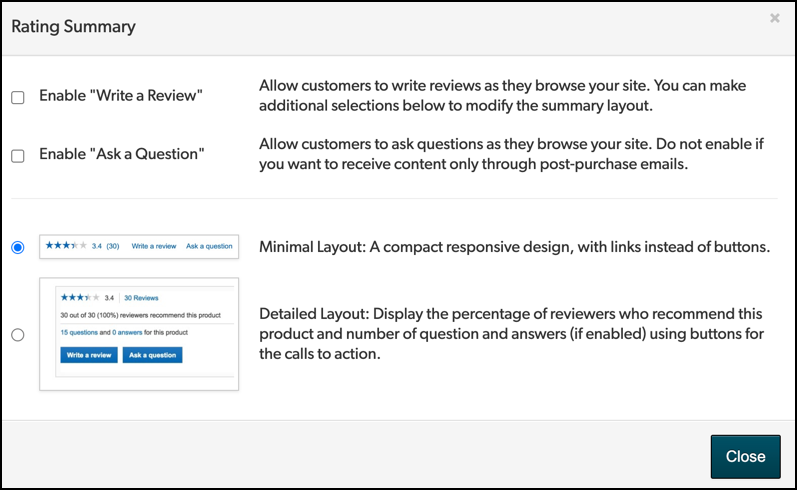
Rating Summary
Select from the following Rating Summary feature options:
- Enable Write a Review: Displays the link in the rating summary.
- Enable Ask a question: Displays the link in the rating summary.
- Minimal layout: Displays a compact responsive design
- Detailed layout: Displays a detailed summary, such as the percentage of reviewers who recommend the product, number of questions and answers, etc.
After selecting the options, select Close and preview your changes.
Related style pages:
- Display (V2) Review Icons
- Display (V2) Q & A Fonts
- Display (V2) Q & A Backgrounds And Borders
- Display (V2) Q & A Margins And Padding
Reviews
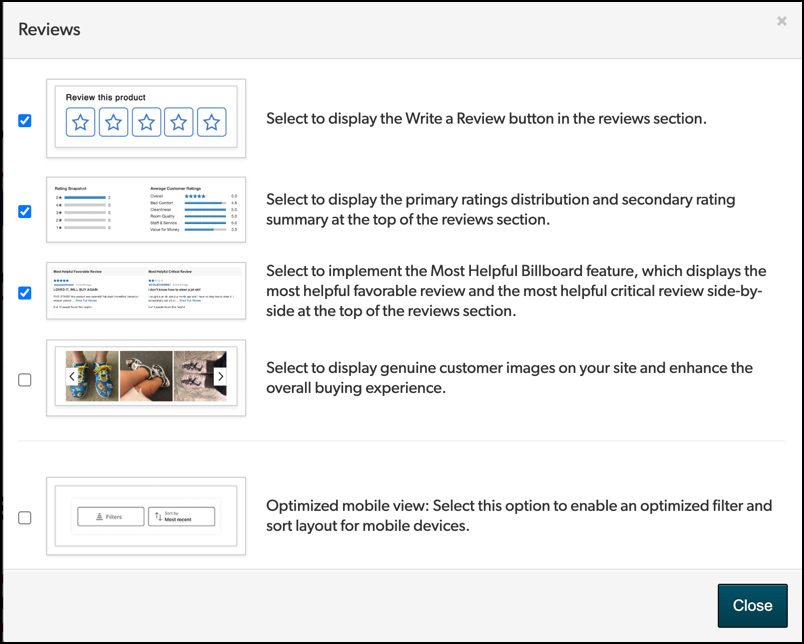
Select from the following Reviews feature options:
- V2 only Review this product: Displays the Review this Product star buttons in the reviews section.
- V1 only Write a review: Displays the Write a review button in the reviews section.
- Primary and secondary ratings: Displays the primary ratings distribution and secondary rating summary at the top of the reviews module.
- Most helpful billboard: Displays the most helpful billboard at the top of the module, which displays the most helpful favorable and critical reviews. This feature is displayed only if the product has:
- more than 10 reviews
- one positive review (four or more stars) with at least three positive helpfulness votes
- one critical review (three or fewer stars) with at least three positive helpfulness votes.
- Most helpful billboard: Displays the most helpful billboard at the top of the module, which displays the most helpful favorable and critical reviews. This feature is displayed only if the product has:
- V2 only Carousel: Displays a carousel of user-generated visual content.
- V2 only Filter and Sort by: Displays an optimized layout for the Filter and Sort by features on mobile devices. When excluded, the features are stacked vertically. This option is enabled by default.
After selecting the options, select Close and preview your changes.
Related style pages:
Questions & Answers
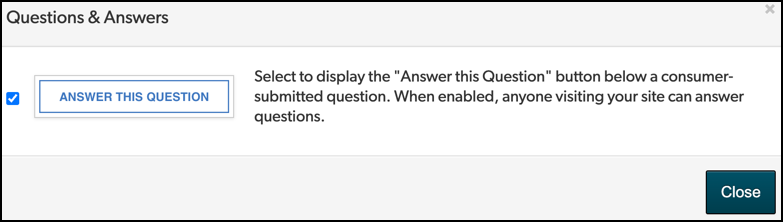
Select the following Questions & Answers features:
- Answer this Question: Displays the Answer this question button below a consumer-submitted question.
- After selecting the option, select Close and preview your changes.
Related style page:
Inline Ratings
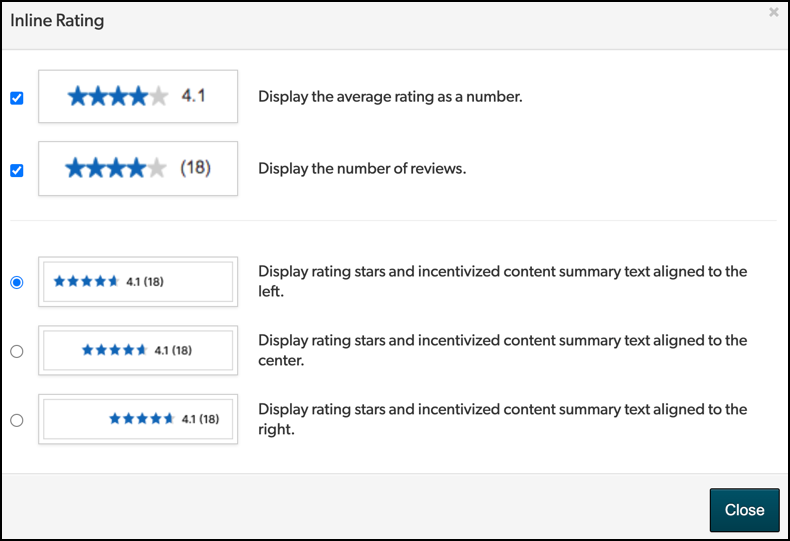
Select the following Inline Ratings features:
- Average rating: Displays the average rating in addition to the stars.
- Number of reviews: Displays the number of reviews in addition to the stars.
- Text alignment: Displays rating stars and content summary text aligned to the left, right, or center.
- After selecting the option, select Close and preview your changes.
Related style pages:
- Display (V2) Review Margins And Padding
- Display (V2) Inline Ratings Widget
- Display (V2) Review Icons
Review Highlights
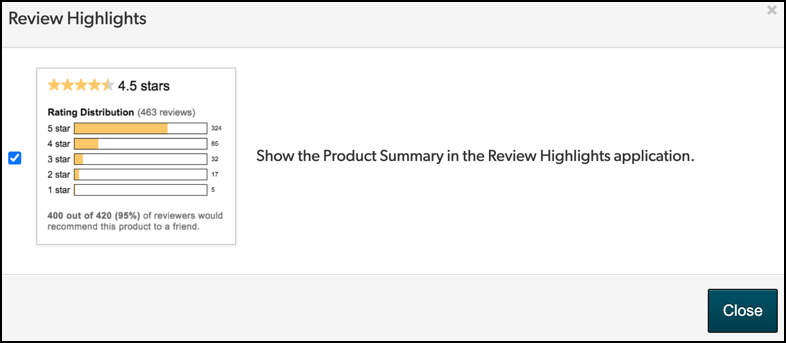
To display the product rating summary in Review Highlights, select Rating Distribution. After selecting the option, select Close and preview your changes.
Related style page:
Product Picker
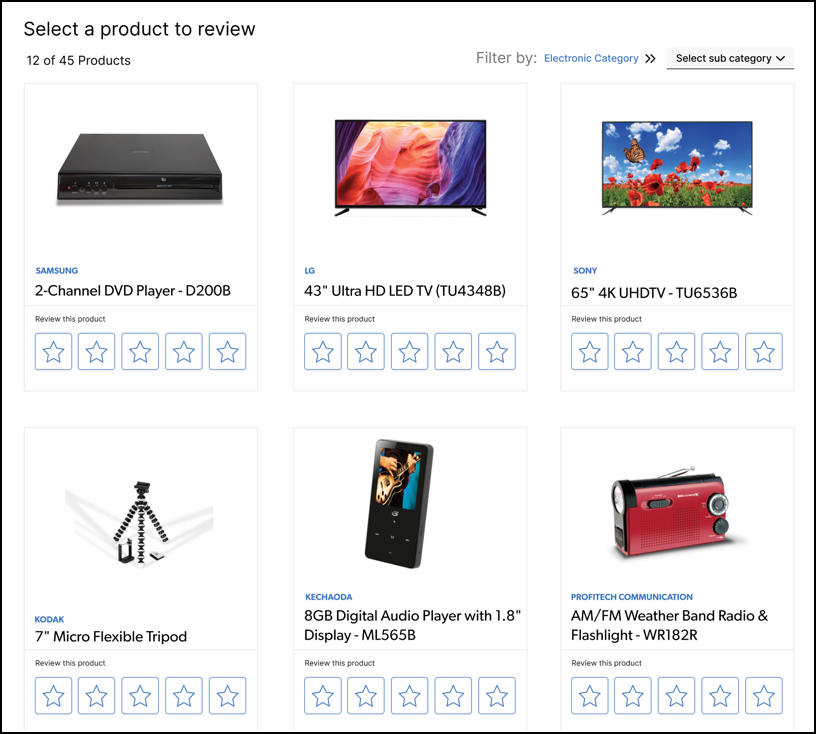
V2 only To enable Product Picker on your website, turn it on in the Style Editor. If you don't see this option, contact Bazaarvoice Support for assistance.
Related style pages:
- Display (V2) Product Picker
- Display (V2): Fonts and icons menu options
- Display (V2): Background and border menu options
- Display (V2): Comments
Reviews Collect
Preview the Reviews Collect application in the Style Editor. If you don't see this option, contact Bazaarvoice Support to enable the Review Submission form in your implementation.

Related style page:
