The Bazaarvoice web analytics integration enables data collection from the Bazaarvoice Pixel into your Google Analytics 4 (GA4) setup. This section describes how to connect GA4 to the Bazaarvoice Pixel so you can track consumer interactions with Bazaarvoice-hosted user-generated content (UGC).
GA4 is the latest and only supported analytics version of Google. Google no longer supports legacy Universal, Asynchronous, and Synchronous GA. When your GA4 is properly configured with Bazaarvoice Pixel, it sends selected events with Bazaarvoice-specific identifiers to your GA4 property, which enables you to track user interactions in detail.
Before you begin
To complete integrating GA4 with Bazaarvoice Pixel, you must have:
- Ratings & Reviews Configuration: Access to Bazaarvoice Ratings & Reviews Configuration in the Bazaarvoice Portal.
- bv.js deployment script: Provided by Bazaarvoice for your specific client/site.
- Google Analytics 4 property: A valid Google TAG_ID from Google (e.g., G-XXXXXXXXXX).
-
GA4 gtag.js: Ensure this script is loaded on your webpage prior to
bv.js. Oncebv.jsfinished loading, it will automatically complete the configuration foranalytics.js
Step 1: Enable and configure web analytics integration

To complete the setup, follow these steps:
- Sign in to the Bazaarvoice Portal.
-
From the upper-right corner, select the settings icon
 .
.
- Navigate to the Configuration section.
-
Select Ratings & Reviews.
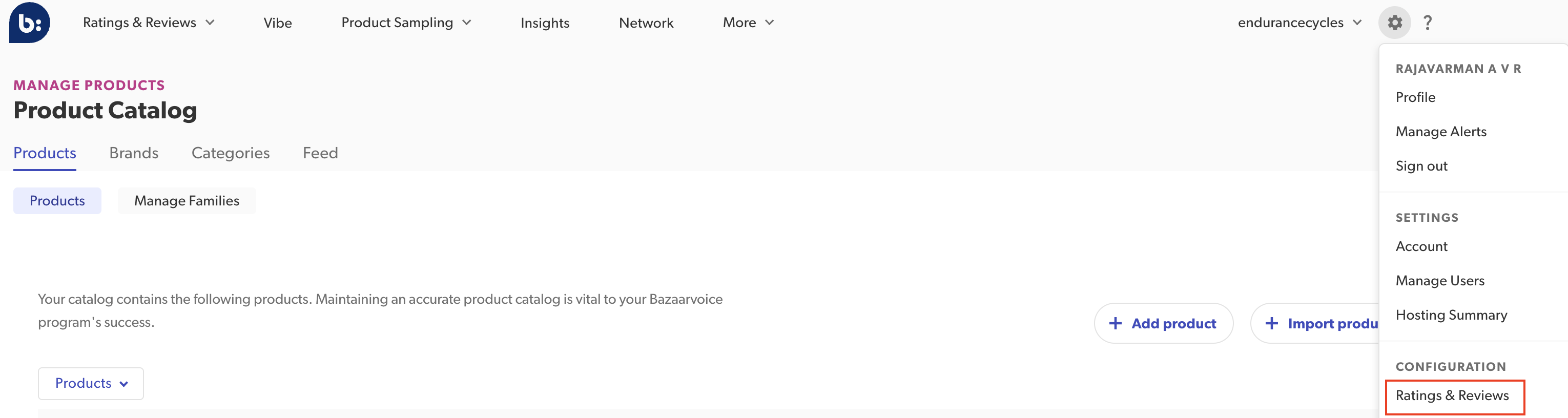
- Under Implementations, select Edit next to the implementation you want to edit.
- From the menu on the left side of the page, select Web Analytics under Settings.
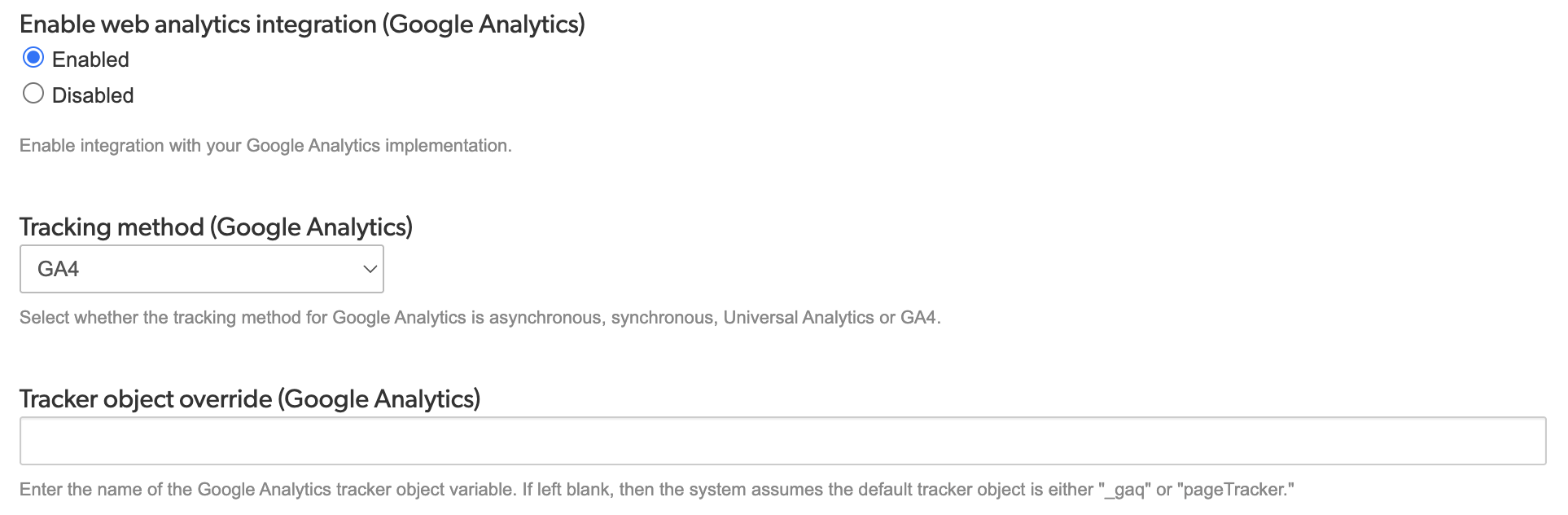
- Under Enable web analytics integration (Google Analytics), select Enabled.
-
Under Tracking method (Google Analytics), select GA4.
-
If your site uses both methods, please contact Bazaarvoice Support to request prioritizing the
gtag.jsimplementation (if needed).
-
If you are not using gtag.js and have implemeted a custom tracker callback function, ensure you enter a tracker name under Tracker object override (Google Analytics) textbox. You can use any custom tracker name of your choice (for example, bvTestTracker) but it should exactly match the callback function name.
- Deploy the changes to the implementation.

Additional configuration
-
Allow first-party cookies: Enable first-party cookies for your website domain in the Workbench client record editor to maintain consistent user identification across page loads. Without first-party cookies, only the
loadidis sent to your analytics setup, and every page refresh is recorded as a new user. -
Configure cookie consent: Integrate a cookie consent mechanism for
BVBRANDIDandBVBRANDSIDcookies. Refer to Bazaarvoice cookie consent for detailed information.
You must configure web analytics in the Bazaarvoice Portal based on your deployment settings. The GA4 configuration uses the following parameters:
|
Property
|
Value |
Description
|
|---|---|---|
|
name
|
GoogleAnalytics
|
Identifies the provider
|
|
method
|
GA4
|
Specifies GA4 implementation
|
|
tracker
|
gtag
|
Refers your gtag function
|
Step 2: Integrate GA4 and Bazaarvoice Pixel
- Sign in to your Google Analytics account and set up a Google TAG_ID. For detailed instructions, refer to Google Documentation.
-
In your webpage, add the Bazaarvoice deployment script to your
<head>section as shown below:
JavaScript<script src="[https://apps.bazaarvoice.com/deployments/](https://apps.bazaarvoice.com/deployments/) {client}/{site}/{environment}/{locale}/bv.js"></script>
Configuration placeholders:
|
Placeholder
|
Description | Example |
|---|---|---|
|
{client} |
Your Bazaarvoice client name |
mycompany
|
|
{site} |
Your site/deployment name |
main_site
|
|
{environment} |
Environment (production or staging) |
production
|
|
{locale} |
Locale code |
en_US |
-
Load the GA4 script in your webpage and configure your Google TAG_ID. Ensure this gtag function is loaded on the window object prior to
bv.js. Oncebv.jsfinishes loading, it will automatically complete the configuration foranalytics.js
Example of gtag.js implementation for GA4
JavaScript |
<!-- Load GA4 gtag.js --> <script async src="[https://www.googletagmanager.com/gtag/js?id=G-XXXXXXXXXX](https://www.googletagmanager.com/gtag/js?id=G-XXXXXXXXXX)"></script> <script> window.dataLayer = window.dataLayer || []; function gtag(){ dataLayer.push(arguments); } gtag('js', new Date()); gtag('config', 'G-XXXXXXXXXX', { debug_mode: false, // Set to true for debugging send_page_view: false // Optional: disable automatic page views }); </script> |
Example of a complete gtag.js implementation
JavaScript |
<!DOCTYPE html> <html> <head> <meta charset="utf-8"> <title>BV + GA4 Integration</title> <!-- 1. Load BV.js deployment --> <script src="[https://apps.bazaarvoice.com/deployments/](https://apps.bazaarvoice.com/deployments/){client}/{site}/production/en_US/bv.js"></script> <!-- 2. Load GA4 --> <script async src="[https://www.googletagmanager.com/gtag/js?id=G-XXXXXXXXXX](https://www.googletagmanager.com/gtag/js?id=G-XXXXXXXXXX)"></script> <script> window.dataLayer = window.dataLayer || []; function gtag(){ dataLayer.push(arguments); } gtag('js', new Date()); gtag('config', 'G-XXXXXXXXXX', { debug_mode: true, // Enable for testing send_page_view: false }); </script> </head> <body> <!-- BV Reviews Container --> <div data-bv-product-id="product1" data-bv-show="reviews"></div> </body> </html> |
Example of custom tracker callback function
For clients who have disabled analytics unification setting, refer to the code below:
JavaScript |
// The function name can be any name as long as it's same as the custom tracker name. function bvTestTracker() { const [,, category, action, label, value, { nonInteraction: nonInteraction }] = arguments; window.dataLayer = window.dataLayer || []; window.dataLayer.push({ 'event': action, category, label, value, nonInteraction }) } |
For clients who have enabled analytics unification setting, refer to the code below:
JavaScript |
function bvTestTracker() { window.dataLayer = window.dataLayer || []; // DETECTION LOGIC: // Check if the 3rd argument (index 2) is a valid object. // Legacy calls pass a String here (Category). // Unification calls pass an Object here (Properties Map). const unificationEvent = arguments.length > 2 && typeof arguments[2] === 'object' && arguments[2] !== null; if (unificationEvent) { // --- SCENARIO A: NEW UNIFICATION SCHEMA --- // Expected Format: [ "event", "EventName", { properties... } ] const eventName = arguments[1]; // e.g., "bvsc.rr" const params = arguments[2]; // The data object window.dataLayer.push({ 'event': eventName, 'category': params.event_category || undefined, 'label': params.event_label || undefined, 'value': params.value || undefined, 'bv_event_action': params.bv_event_action, // Specific to Enable analytics unification (Google Analytics and Adobe Analytics) flag when enabled 'bvsc_event_data': params.bvsc_event_data // Specific to Enable analytics unification (Google Analytics and Adobe Analytics) flag when enabled }); } else { // --- SCENARIO B: LEGACY SCHEMA --- // Expected Format: [ "send", "event", category, action, label, value, { options } ] // Handle optional arguments safely const options = arguments[6] || { }; const category = arguments[2]; const action = arguments[3]; const label = arguments[4]; const value = arguments[5]; const nonInteraction = options.nonInteraction; window.dataLayer.push({ 'event': action, category, label, value, nonInteraction } |
Step 3: Debug mode
To enable GA4 debug mode, set debug_mode:true in your implementation code as shown below:
JavaScript |
gtag('config', 'G-XXXXXXXXXX', { debug_mode: true }); |
Verify integration via DebugView
- In your Google Analytics 4, navigate to Admin > DebugView.
- Monitor the real-time event stream for events prefixed with BV.
- Select an event to verify that the Bazaarvoice parameters are correctly populated.
Verify GA4 events in browser DevTools
Use the browser's Developer Tools to confirm that the Bazaarvoice Pixel is correctly sending data to Google Analytics 4 (GA4).
-
Open Developer Tools and right-click anywhere on your page and select Inspect, or use the following keyboard shortcuts:
- Windows/Linux: F12 or Ctrl + Shift + I
- macOS: Cmd + Option + I
- Select the Network tab at the top of the DevTools panel. This tool monitors all data requests sent and received by your webpage.
- In the Filter box, type collect or google-analytics to isolate requests sent to GA4.
-
Select a request from the list and click the Payload tab (or Headers > Query String Parameters in older browser versions) to verify:
- Connectivity: Confirm that events are reaching GA4 by verifying that the request status is 200 OK.
- Data Accuracy: Ensure the Bazaarvoice Pixel is sending the correct parameters (such as event names, product IDs, or values).
Events tracked by Bazaarvoice
These dimensions are used to capture information:
- Group—Answers the question "With what site content did the visitor interact?" and always contains the value
Bazaarvoice. - Product—Answers the questions "Where is the user?" or "Which feature is being used?" and contains one of these values:
RatingsAndReviewsAskAndAnswer
- Event Name—Answers the question "What specific kind of event is this?" and can include values.
Values
Event Name Value
Description
SubmissionSubmissionFormSubmit
Select Submit to submit the review submission form.
ClickSummaryStars
Select the stars in the summary to jump to the Reviews section.
HoverHistogram
Hover over the star rating in the summary to open the histogram.
ClickReadReviewsButton
Select Read Reviews in the histogram.
ClickReviewCount
Select Review Count in the summary to jump to the Reviews section.
ClickSummaryQuestionStats
Select Question Count or Answer Count to jump to the Questions section.
WriteButton
Select Write a review in the summary to open the submission form.
AskButton
Select Ask a question in the summary to open the submission lightbox.
PaginateNext
Move to the next page of UGC.
PaginatePrev
Move to the previous page of UGC.
SortFeatured
Sort the Review section by Featured.
SortMostHelpful
Sort the Review section by Most Helpful.
SortMostRecent
Sort the Review section by Most Recent.
SortNegative
Sort the Review section by Lowest to Highest Rating.
SortOldest
Sort the Review section by Oldest to Newest.
SortPositive
Sort the Review section by Highest to Lowest Rating.
SortRelevancy
Sort the Review section by Most Relevant.
SortFeaturedQuestionsFirst
Sort the Question and Answer section by Featured Questions First.
SortHelpfulnessAnswersFirst
Sort the Question and Answer section by Most Helpful Answers.
SortHelpfulnessAnswersLast
Sort the Question and Answer section by Least Helpful Answers.
SortMostAnsweredQuestionsFirst
Sort the Question and Answer section by Most Answered.
Sort MostAnsweredQuestionsLast
Sort the Question and Answer section by Answers Needed.
SortRecentAnswersFirst
Sort the Question and Answer section by Newest Answers.
SortRecentAnswersLast
Sort the Question and Answer section by Oldest Answers.
SortRecentQuestionsFirst
Sort the Question and Answer section by Newest Questions.
SortRecentQuestionsLast
Sort the Question and Answer section by Oldest Questions.
Filter1Star
Filter by 1 star in the Reviews section.
Filter2Stars
Filter by 2 stars in the Reviews section.
Filter3Stars
Filter by 3 stars in the Reviews section.
Filter4Stars
Filter by 4 stars in the Reviews section.
Filter5Stars
Filter by 5 stars in the Reviews section.
FilterClear1Star
Clear the 1-star filter in the Reviews section.
FilterClear2Stars
Clear the 2-star filter in the Reviews section.
FilterClear3Stars
Clear the 3-star filter in the Reviews section.
FilterClear4Stars
Clear the 4-star filter in the Reviews section.
FilterClear5Stars
Clear the 5-star filter in the Reviews section.
FilterClearAll
Clear all active filters in the Reviews section.
HoverProfile
Hover over a profile name to open a profile.
ClickStars
Select the Stars next to a review.
ClickUserSubmittedPhoto
Select a user-submitted photo below a review.
ClickYesHelpfulVote
Select to vote a piece of UGC as helpful.
ClickNoHelpfulVote
Select to vote a piece of UGC as not helpful.
ClickReportLink
Select to report an inappropriate piece of UGC.
Troubleshooting
| Issue | Solution |
|---|---|
BV events not appearing in GA4 |
|
No network requests to GA4 |
|
Debug mode not working |
|
