Use Review Rewards to configure and manage discount code incentives across the Review Request Email (RRE), Review Request Reminder (RRR), and Review Approved email.
With this feature, you can:
- Incentivize: Add clear incentive messaging to RRE and RRR to inform consumers that they will receive a discount code after successfully submitting a review, while supplies last. This messaging encourages consumers to submit reviews and helps increase overall review volume.
- Fulfill: Automatically send unique discount codes, if available at the time of review approval, via the Review Approved email.

Note: To get started, contact Bazaarvoice Support.
Required solutions and roles
You must have:
| Solutions | Roles |
|---|---|
|
|
Note: To learn more about how solutions and roles are assigned in the Bazaarvoice Portal, refer to Portal roles.
Setup overview
To set up Review Rewards, you must
- Configure RRE to include an incentive message to inform consumers that they will receive a discount code after successfully submitting a review, while supplies last.
- Configure RRR to include an incentive message to remind consumers about the discount codes.
- Configure Review Approved email to send unique discount codes once the submitted review is approved.
- Upload discount code batch in the Bazaarvoice Portal.
Configure email templates for review rewards

Step 1: Configure Review Request Email
- Sign in to the Bazaarvoice Portal.
- Select the required client instance name from the Instance Selector drop-down list in the upper-right corner.
-
From the upper-right corner, select the settings icon
 .
.
- Select Ratings & Reviews.
-
Under Implementations, select Edit next to the implementation you want to configure.
Note: Email templates apply to the deployment zone where the implementation is published. Changes affect emails sent from that deployment zone only. - Under Collect Reviews, select Configure Messages.
-
Select the General tab and enable Review Rewards setting.
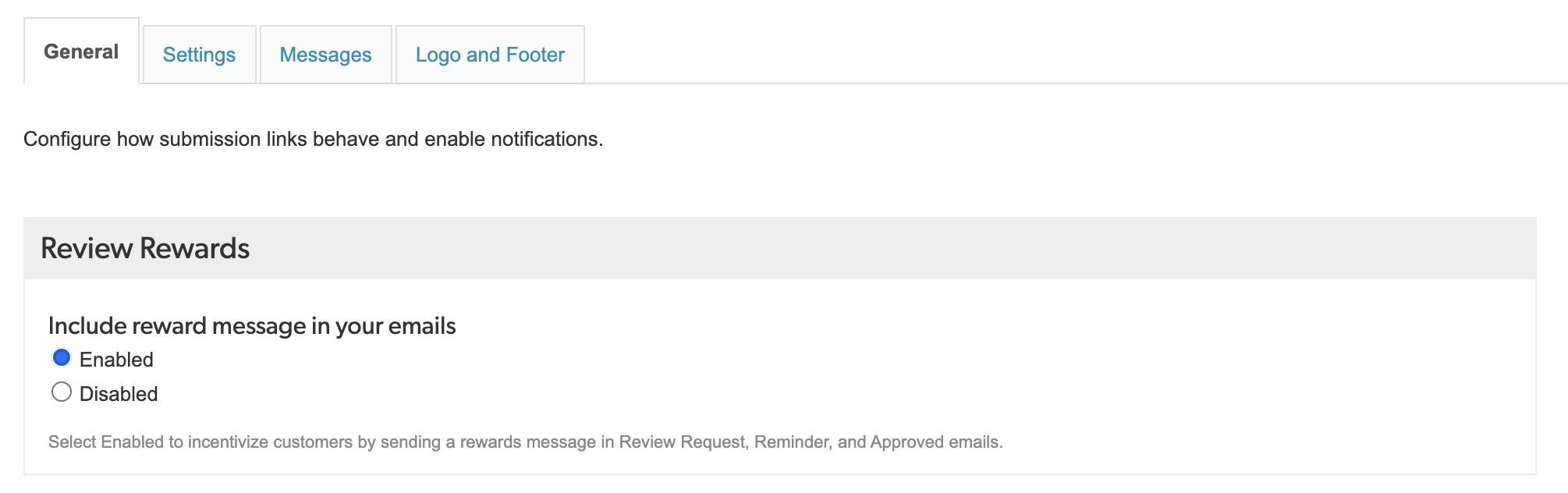
- Select the Messages tab and scroll to the Message Type.
-
Select Edit next to the Review Request.
- Select the required Layout Type: In-mail (recommended) or Standard. At present, Custom template is not supported for Review Rewards.
-
Use the Discount code banner text field to highlight the discount incentive and inform consumers that they may receive a discount code for submitting a review on eligible products, while supplies last. If this field is empty, RRE does not display the incentive message.
Example:
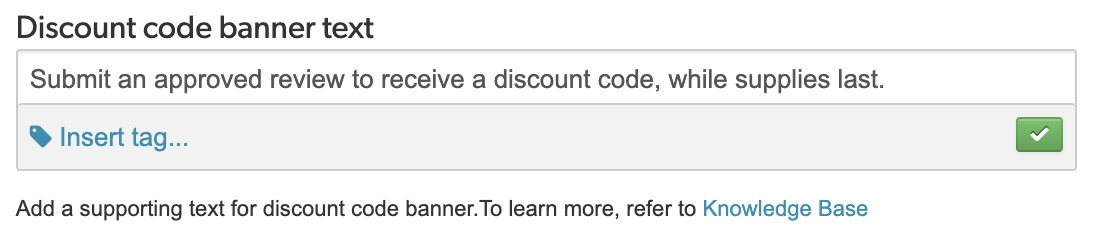
 for ensuring that this incentive program complies with all applicable laws, including consumer protection, data privacy, and financial incentive regulations. Please consult with your legal counsel before implementation.
Include terms and conditions and data privacy information
- In the Additional Information section, enter the required text for your terms and conditions and data privacy policy.
- Select Insert link.
-
From the Link type dropdown, select Custom link.
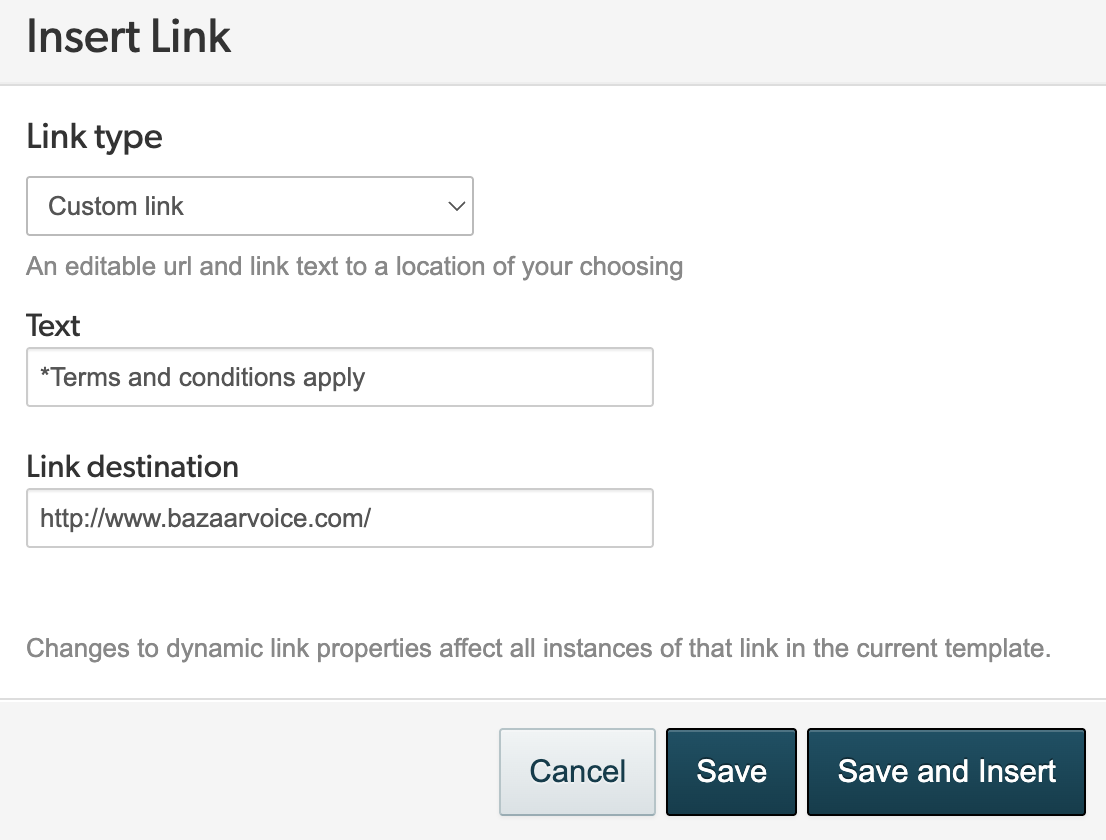
- In the Text field, add supporting text for your link.
- In the Link destination field, enter the URL that directs users to your discount code terms and conditions and data privacy policy.
-
Select Save and Insert.
Example:
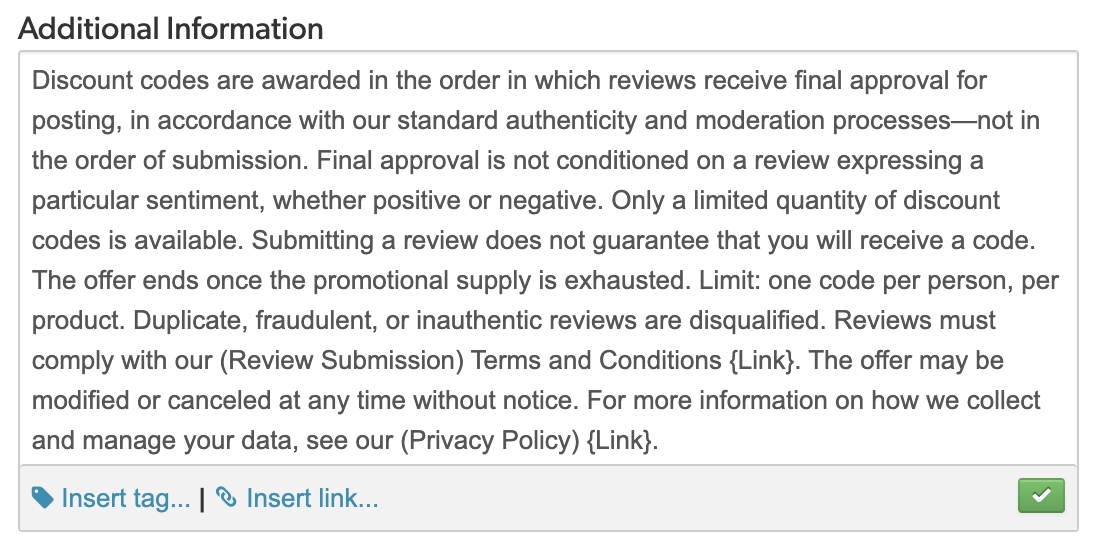
for ensuring that this incentive program complies with all applicable laws, including consumer protection, data privacy, and financial incentive regulations. Please consult with your legal counsel before implementation. -
Review your changes in the Preview section.
Step 2: Configure Review Request Reminder
Follow the steps detailed above to configure the Review Request Reminder message type.
Step 3: Configure Review Approved email
- On the Messages tab, select Edit next to the Review Approved.
-
Use the Discount code banner text field to appreciate consumers for submitting a review and provide the discount code and expiry date. Then select Insert tag to include dynamic details such as D
iscount code and Discount value within the banner text. These details are retrieved from your Portal Configuration. If this field is empty, the Review Approved email does not display the discount banner.
Example:
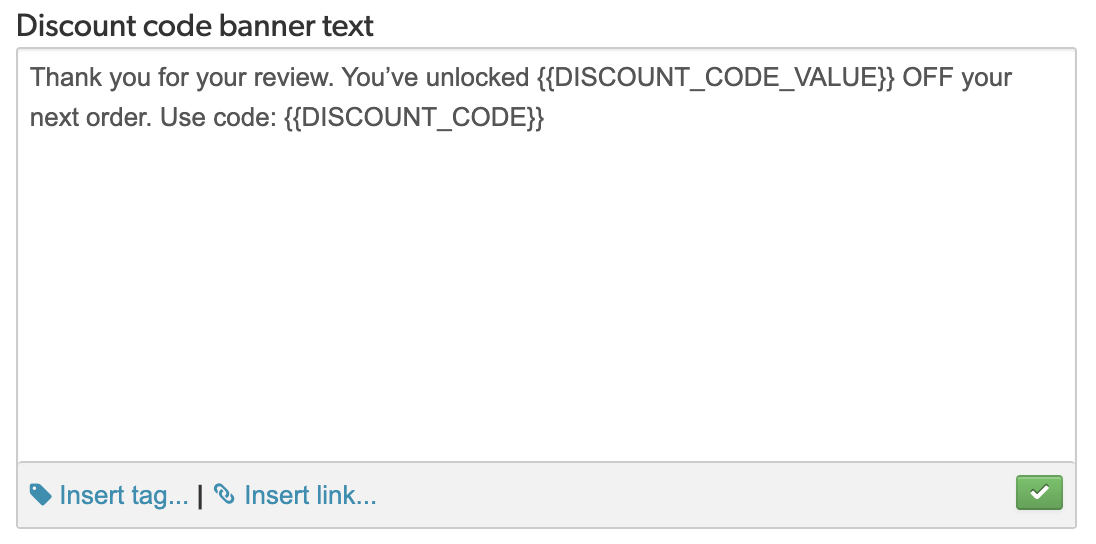
-
In the Discount code expiry (Optional) field, enter the required text and select Insert tag > Discount code expiry. This tag retrieves the expiry date from your Portal configuration. If this field is empty, the Review Approved email does not display the expiry date.
Example:
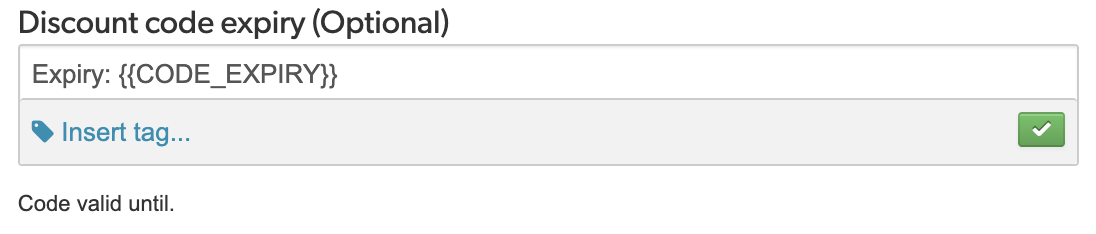
-
In the Footer section, enter the required text for your terms and conditions. Then use Insert Link to add the URL that directs users to your specific rules and terms and conditions for redeeming the discount code. This link appears in the email footer.
Example:
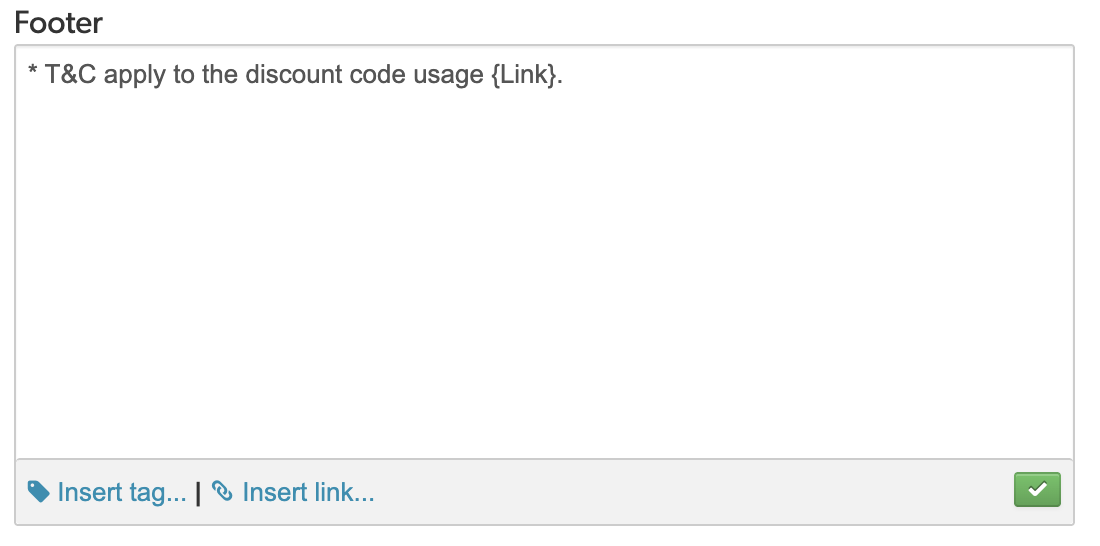
You are responsible for the final wording and terms and conditions, for ensuring that the program (including, without limitation, the redemption and expiration of discount codes) is compliant with applicable laws, including consumer protection, data privacy, and financial incentive regulations, and for resolving all disputes with your customers regarding the use, redemption, and expiration of discount codes. Please consult with your legal counsel.
- Review your changes in the Preview section.
-
From the upper-left corner, select the Home button to go the Site Manager page.

- Select Deploy next to the required implementation.
-
Select a deployment zone from the dropdown.
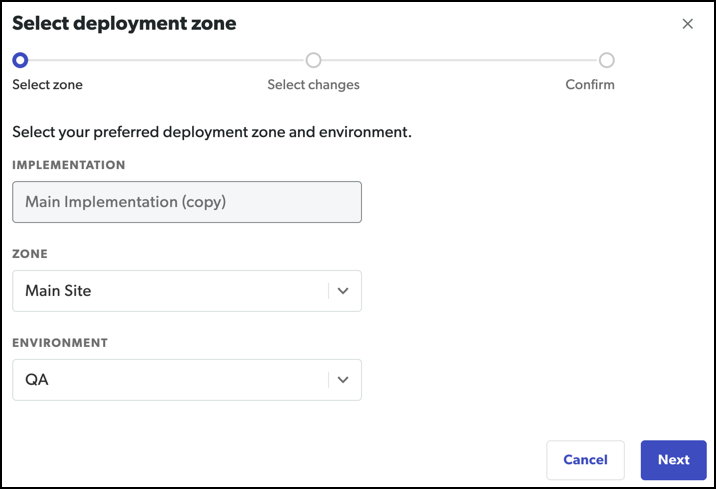
- On the Select zone step, select the target Deployment zone and Environment (staging or production), then select Next.
- On the Select changes step, review your updates and select Confirm changes.
- On the Confirm step, review the validation results and select Start deployment.
Note: Email templates apply to the deployment zone where the implementation is published. Changes affect emails sent from that deployment zone only.
Step 4: Upload discount code batch in the Bazaarvoice Portal
- Go to the Bazaarvoice Portal tab.
-
From the upper-right corner, select the settings icon.
- Select Review Rewards.
-
On the Discount Code Batch page, select Get started.
- In the Upload Discount Code File section, upload a file containing discount codes
- Supported file formats are .csv and .xlsx.
- The maximum file size is 5 MB.
- The file name should not include special characters.
-
Each discount code supports up to 30 alphanumeric characters. The only supported special character is a hyphen (-), which must appear between alphanumeric segments-not at the beginning, end, or consecutively. Examples: Discountcode-10, Discount-code-10, Offer-10. Hyphens are valid in discount codes only, not in file names.
Note: Hyphens are valid in discount codes only, not in file names. Select Download example file to get a sample file (if needed) and ensure you follow the same format.
- The system runs a real-time check to identify duplicate codes and formatting issues. If errors occur, select Download error report, fix the issue, then upload the file again.
-
To cancel the uploaded file, select X.
Note: The discount codes that pass the check become available for use in Review Approved emails, even if you choose not to fix invalid codes. -
Configure Code batch settings:
- Set the discount code expiry date. The default expiry date is one year from the creation date
- Enter the discount value per discount code batch in either currency or as a percentage.
-
Select a deployment zone from the dropdown. Only one deployment zone can be assigned per discount code batch. If no deployment zones appear in the dropdown, verify that the Review Rewards setting is enabled for that deployment zone.
Note: These settings apply to every discount code in the batch.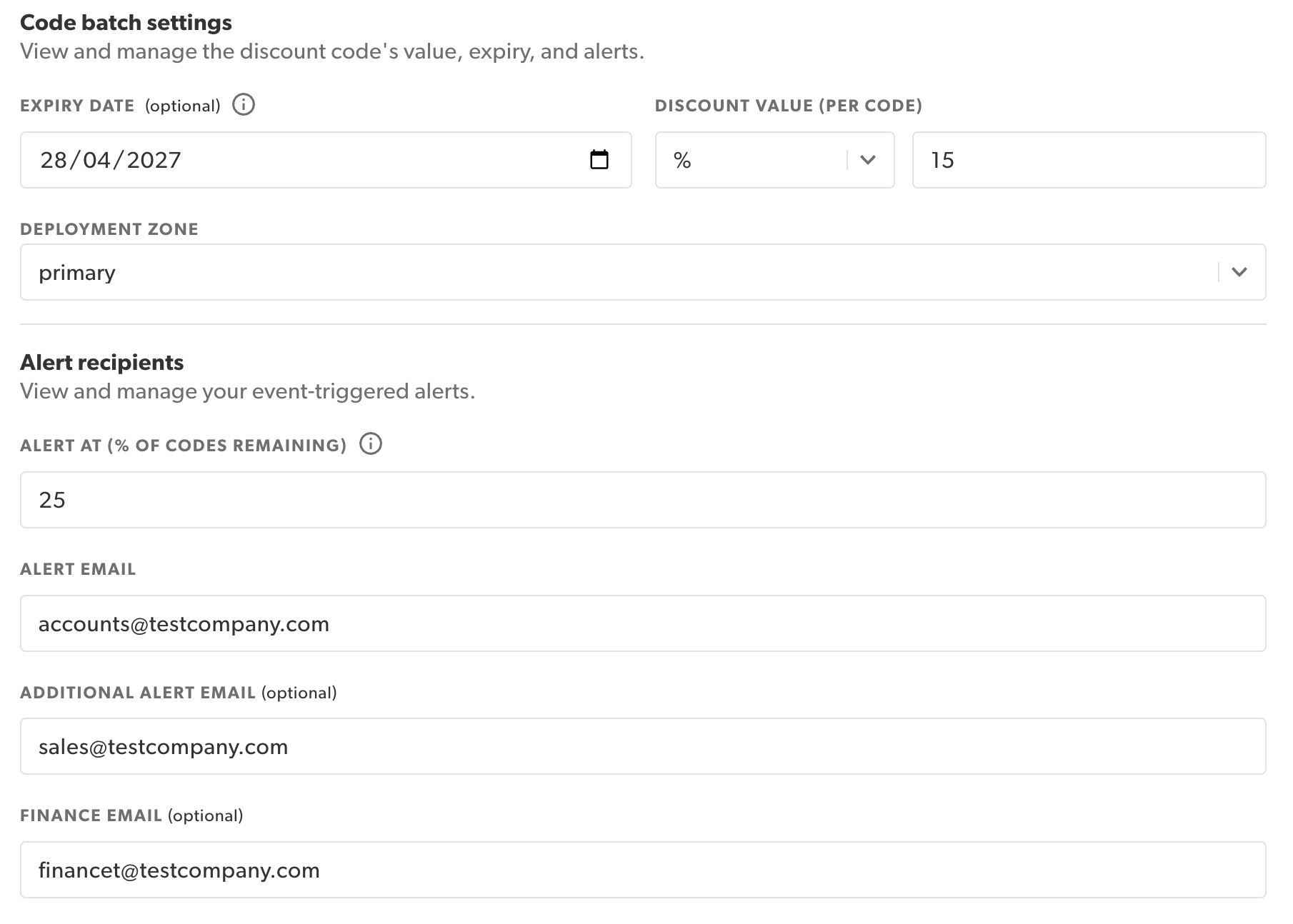
-
Configure Alert recipients:
- Enter the email alert threshold (percentage). The system sends alerts when remaining discount codes reach this threshold.
- Under Alert Email, enter the recipient email address for alerts.
- Additional Email Alert and Finance Email fields are optional.
- Use the Configuration summary pane to review the settings.
- Select Create code batch.
How discount counts are awarded
- Discount codes are awarded in the order in which reviews receive final approval for posting, in accordance with standard authenticity and moderation processes—not in the order of submission.
- Final approval is not conditioned on a review expressing a particular sentiment, whether positive or negative.
- Only a limited quantity of discount codes is available. Submitting a review does not guarantee that you will receive a code.
- The offer ends once the promotional supply is exhausted.
- Limit: one code per person, per product.
- Duplicate, fraudulent, or inauthentic reviews are disqualified.
- Reviews must comply with the applicable Review Submission Terms and Conditions. Refer
- The offer may be modified or canceled at any time without notice.
When emails include incentive content
- The RRE and RRR emails include the configured incentive message only when an active discount code batch is available.
- The Review Approved email includes a discount code only when a valid code (active batch with an expiry date) is available at the time of review approval.
Understand email alerts
Bazaarvoice sends email alerts to configured recipients only when there is no alternate discount code batch available and the current discount code batch meets one of the following conditions:
- The batch is fully used.
- The batch is running low on available discount codes. You can define this threshold in the Code batch settings.
- The batch has expired. You can set the expiry date in the Code batch settings, or else it defaults to one year from the date of upload.
- Seven days before the batch’s expiry date. The batch is approaching its expiry date.
View discount code batch
- Sign in to the Bazaarvoice Portal.
-
From the upper-right corner, select the settings icon
 .
.
- Select Review Rewards.
-
The Discount Code Batch page displays all existing discount code batches with the following information.
- Batch ID - A unique ID of the discount code batch. Select the ID to view the batch details.
- Uploaded on - Date the batch was uploaded.
- Expiration - Expiry date of the batch.
- Code value - Discount value for the batch (percentage).
- Codes remaining - Number of unused discount codes in the batch.
- Deployment zone - The deployment zone associated with this discount code batch. Only one deployment zone can be associated per batch.
-
Status - Current status of the batch:
- In process - The batch is processing and not yet available.
- Active - The batch is available, and discount codes are in use in the Review Approved emails.
- Queued - The batch is ready but not yet active. Next earliest uploaded batch becomes active when the current batch expires or is exhausted.
- Exhausted - All discount codes in the batch are used. The system activates the next earliest uploaded batch.
- Expired - The batch has passed its expiry date. The system activates the next earliest uploaded batch.
- Action - View the validated discount code batch file.
