Respond to critical content the moment it's posted. With Alerts, you can bypass manual searches and receive instant email notifications whenever a customer mentions a specific phrase, safety concern, or product defect.
Access the alerts dashboard (two ways)
There are two ways to view and manage your existing alerts:
- From the List View: Select the ellipses icon (...) in the upper-right corner and select Manage alerts.
- From Portal Settings: Select the settings icon
 in the upper-right corner of any page and select Manage alerts.
Create an alert
Alerts Contributor Alerts Administrator
To stay informed about specific consumer feedback, you can create real-time alerts. Recipients will receive an email whenever new content matches your specified criteria.
- Sign in to the Bazaarvoice Portal.
- From the top navigation menu select Ratings & Reviews.
- From the side bar, select Questions.
- From the List View, select the ellipses icon (...) in the upper-right corner.
- Select Create alert. The Create Questions & Answers Alert modal appears:
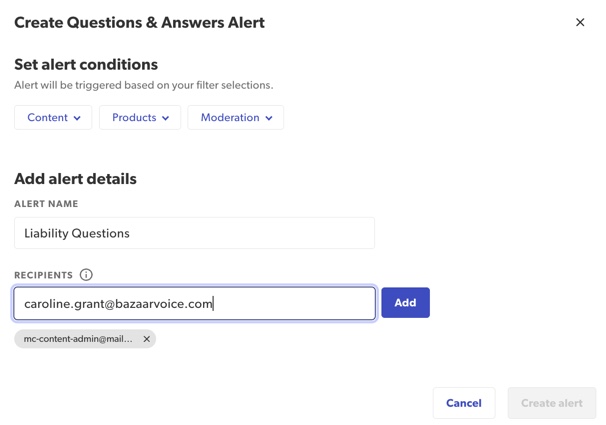
- Set your alert conditions (triggers): Refer to alert conditions for more information.
- Name your alert: Use a clear name (for example, "[Product Name] | Liability Issues").
- Add recipients: Enter the email addresses of active Portal users.

- Select Create alert.
 .
.
Alert conditions (triggers)
An alert trigger is the set of criteria you define that must be met to automatically send a notification. Setup the alert conditions or filters to define the critical data you want to track.
| Trigger condition | Description |
|---|---|
| Content | Type Select one or both: Questions or Answers. |
| Locale
Select one or more locales. For example: de_US, en_US, fr_US. |
|
|
Text fields (keywords)
Learn more about keyword alerts.
|
|
| Products | Category: Enter category name or ID. |
| Brand: Enter brand name or ID. | |
| Product: Enter product ID or name. | |
| Moderation | Answer codes
|
Answer codes (client)
|
|
Answer status: Select either or both: Approved or Rejected. |
|
Question codes
| |
Question codes (client)
| |
| Question status: Select either or both: Approved or Rejected. | |
Post moderation: Triggers an alert when moderation codes are edited. If you want to receive an alert when a new code is added to an existing question or answer you need to apply the post-moderation filter. |
Managing existing alerts
The Manage Alerts page is your central dashboard for viewing and editing active alert notifications. Use the table below to understand the alerts information provided:
|
Column
|
Description
|
|---|---|
| Alert name |
Name of the alert. Select the Alert name link to view or edit the current alert settings. Recipients can view an alert even if they didn't create it.
|
| Created by |
Name of the person who created the alert.
|
| Date created |
Date the alert was created.
|
| Recipients |
The total number of users currently subscribed to this notification.
|
| Alert type |
Type of alert:
|
| Actions |
|
Find alerts
Alert Contributor
Alert Administrator
As an Alerts Administrator you can view any alert. As an Alerts Contributor you can only view alerts you created.
Find alerts using:
- Search field: Enter an alert name in the search field.
- Sort data table: Sort the table by the date the alert was created.
Edit alerts
Alert Contributor Alert Administrator
As an Alerts Administrator you can edit any alert. As an Alerts Contributor you can only edit alerts you've created.
To edit alert details:
- In the Manage alerts table, select the Alert name you want to modify.
-
In the modal that appears, update the filters, name, or recipients as needed.
- Select Save.
Delete alerts
Alert Contributor Alert Administrator
As an Alerts Administrator you can delete any alert. As an Alerts Contributor you can only delete alerts you've created.
To delete an alert:
- In the Actions column of the table, select the the ellipses icon (...) .
- Select Delete alert in the row containing the alert you want to delete.
Stop receiving alerts (unsubscribe)
Alert Viewer Alert Contributor Alert Administrator
To stop receiving alert emails:
- In the Actions column of the table, select the ellipses icon (...) > Stop receiving alert in the row containing the alert you want to stop receiving notifications for.
- Select Remove.
Post-moderation alerts firing rules
Enable this trigger to receive notifications when a moderation code is updated on content that has already been moderated. This is useful for tracking:
- Manual overrides: When a teammate manually changes a code in the Portal.
- Re-moderation: When a review is flagged with
[REMOD]for a second look. - User edits: When a consumer updates their question, triggering a new moderation check.
Best practices: Avoiding "Alert Fatigue"
- Audit monthly: Delete alerts for discontinued products or resolved campaigns.
- Be specific: Use phrases like "battery exploded" instead of just "battery" to keep notifications relevant.
- Consistent naming: Use a format like
[Brand] | [Topic] | [Frequency]to make your alerts table easier to scan.
Get started: Recommended alerts
If you're new to alerts, we recommend setting up these three essential notifications:
- Liability concerns: Filter for the LI code to notify Legal or Safety teams immediately.
- Customer service: Filter for CS or SI codes to catch service issues that require a brand response.
