Use the Webhooks feature to receive real-time notifications when review request emails are ready to be sent to consumers. Bazaarvoice sends an HTTPS POST request to the endpoint URL you configure when the event occurs. This event is triggered only when the order data has been processed and Bazaarvoice is ready to send a review request email (RRE) or review request reminder (RRR) to consumers. Timing depends on the default wait time set in the Ratings & Reviews Configuration.

The Webhooks feature is available only for Enterprise clients; contact Bazaarvoice Support to upgrade.
How webhook works
- Create a webhook: In the Bazaarvoice Portal, create a webhook by adding an endpoint URL and selecting the event triggers to activate the endpoint.
- Secret key: A secret key is generated for every webhook. Save it securely immediately, as it cannot be recovered and is required for your developers to authenticate Bazaarvoice event callbacks.
- Set the review collection method: Choose whether Bazaarvoice sends RREs only or sends RREs and the event payload to your endpoint. See "Set the review collection method" below for the available options.
- Event trigger: Order data is processed by Bazaarvoice, and RREs become ready to send to consumers.
- Payload delivery: Bazaarvoice packages the event data into a JSON payload.
- POST request: Bazaarvoice sends this payload via HTTPS to your pre-configured destination URL.
-
Server acknowledgment: Your server receives the data and returns a 2XX status code to confirm successful receipt.
Security tip: To ensure the integrity of the data, use a secure HTTPS endpoint and implement signature verification to confirm requests are authentically originating from Bazaarvoice. - End user experience: Your system uses the event data to trigger push notifications to consumers based on your business logic, such as when to send the notification and how it appears on their device.
Required solutions and roles
You must have the following solution and roles:
| Solution | Roles | Permissions |
|---|---|---|
|
Ratings & Reviews
|
Technical Administrator | Can create, view, edit, and archive webhooks. |
| Technical Contributor | Can create and view a webhook. |

Setup overview
To set up webhook based push notifications for RRE and RRR, you must:
- Create a webhook in the Bazaarvoice Portal.
- Set the review collection method in the Ratings & Reviews configuration.
- Deploy the implementation to production.
Create a webhook for push notification
- Sign in to the Bazaarvoice Portal.
- Select the required client instance name from the Instance Selector drop-down list in the upper-right corner.
-
From the upper-right corner, select the settings icon
 .
.
- Go to the Developer section and select Webhooks.
- Select Add endpoint.
-
On the Add Endpoint page, enter the following details:
- Client Instance: Automatically populated based on your selection in the instance selector at the top right of the Portal (Step 2).
- Endpoint name: A name for the webhook used to identify and manage the endpoint in the Portal.
- Endpoint URL: The URL to which Bazaarvoice sends callback requests.
- Description (Optional): A brief description of the endpoint’s purpose for future reference.
- Select event triggers: The review event that triggers a callback. The Select Events page provides the necessary options to configure your preferred callbacks.
- Select Add events and select the Review collection.
-
The "Secret key generated successfully" message is displayed.
Note: Please save this secret key securely—once lost, it cannot be recovered. Your developers need it to authenticate Bazaarvoice event callbacks.
Set review collection method
- Sign in to the Bazaarvoice Portal.
- From the Instance Selector drop-down list in the upper-right corner, select the required client instance name.
-
From the upper-right corner, select the settings icon .
- Select Ratings & Reviews.
-
Under Implementations, select Edit next to the implementation you want to configure.
Note: Email templates apply to the deployment zone where the implementation is published. Changes affect only emails sent from that deployment zone. - Under Collect Reviews, select Configure Messages.
- Select the Messages tab and scroll to Message Type.
- Select Edit next to Review Request.
-
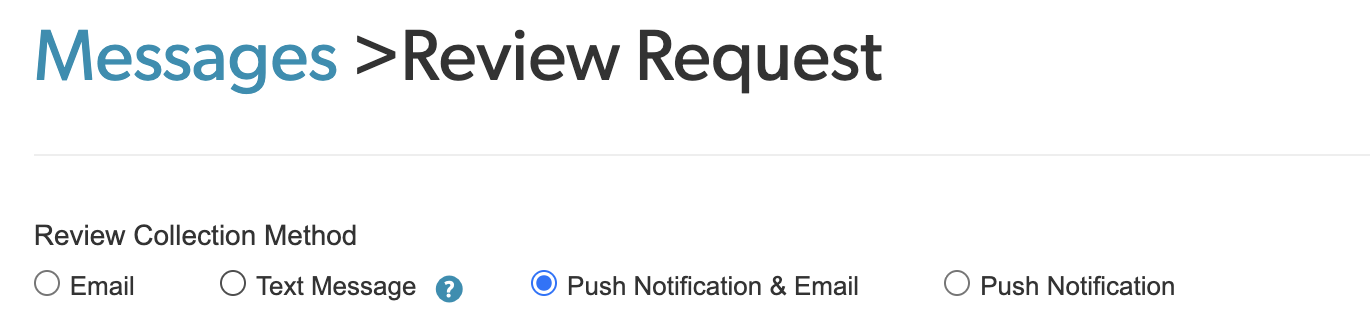
Choose a review collection method:
- Push Notification & Email (recommended): RREs are sent as usual, and the event data is also sent to your configured endpoint, as set in Step 6c in the previous section.
- Push Notification Only: Event data is sent to your configured endpoint; no RRE is sent.
- Email Only: RREs are sent; event data is not sent to your server.
-
Text Only: Text messages are sent to consumers.
- Select the required Layout Type and complete the email templates.
- Repeat steps 6–10 for the Review Request Reminder message type.
Note: Message types other than RRE and RRR (such as Review Approved and Review Rejected) can only be sent via email; no other review collection method is supported.
Deploy the implementation
-
From the upper-left corner, select the Home button to go to the Site Manager page.

- Select Deploy next to the required implementation.
-
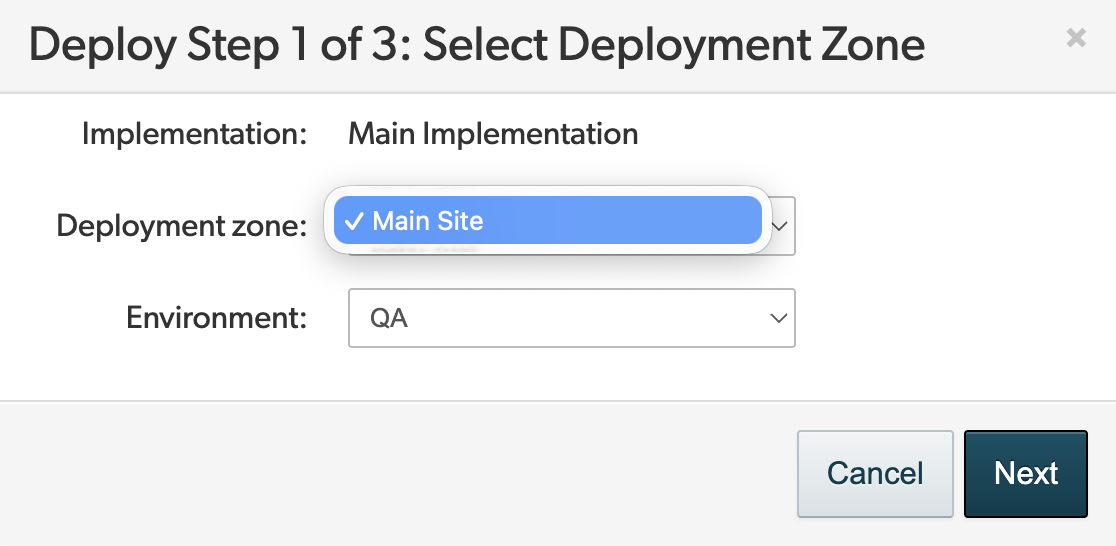
Select a deployment zone from the dropdown. Changes apply only to the selected deployment zone; settings won't take effect on your storefront until the implementation is deployed to production.
- Select Next to preview the changes.
- Select Confirm changes.
- Select Start deployment.

For details on other event callbacks you can configure, how to decrypt the reviewer's email address, and how to validate the authenticity of event callbacks, refer to the Manage webhooks article.
Example payload
JSON |
|
