You can send the transaction ID (order ID) and incentivized review data to Bazaarvoice using any of the following methods:

Method 1: BV Pixel
The BV Pixel automatically captures the transaction ID from the <orderId>parameter and the incentivized review data from the <incentivizedReview> parameter directly from your site and sends it to Bazaarvoice.
To enable this, implement the BV Pixel on all your order confirmation pages.
Implementation steps
- Add the BV loader to the relevant pages.
- Add the transaction event code.
- (Optional) Add PII parameters to the transaction event code.
For detailed information, refer to BV Pixel. To learn about BV Pixel v1, refer to BV Pixel v1.
Method 2: XML feed file
If you cannot send order data using BV Pixel, you can provide an XML feed file containing the <TransactionId> and <IncentivizedReview> fields.
For detailed information, refer to XML feed.
Example XML feed
Code |
<?xml version="1.0" encoding="UTF-8"?> <Feed xmlns="httP<span class="dxhe-searchHI">P</span>roducts> </Interaction> </Feed> |
Method 3: Transactions API
The Transactions API enables you to manually send order data. Use this API to create records for single or bulk transactions. Make sure your request body includes the transactionidand incentivizedReview parameters.
For detailed information, refer to Transactions API.
|
https://[stg].api.bazaarvoice.com/customer-transactions/transactions HTTP/1.1
|
Sample POST request - Bulk transaction
|
https://[stg].api.bazaarvoice.com/customer-transactions/bulk-transactions HTTP/1.1
|
Configuration in Portal
To show the transaction ID (order ID) and incentivized review badge on your product page, ensure the following questions are present in your review submission form:
-
Order Number
(Question ID: OrderNumber) -
Did you receive an incentive for this review?
(Question ID: IncentivizedReview)
Configure Order ID
- Sign in to the Bazaarvoice Portal.
-
From the upper-right corner, select the settings icon
 .
.
- Select Configuration.
- Select the Submission Form Editor.
- Go to the Product section.
-
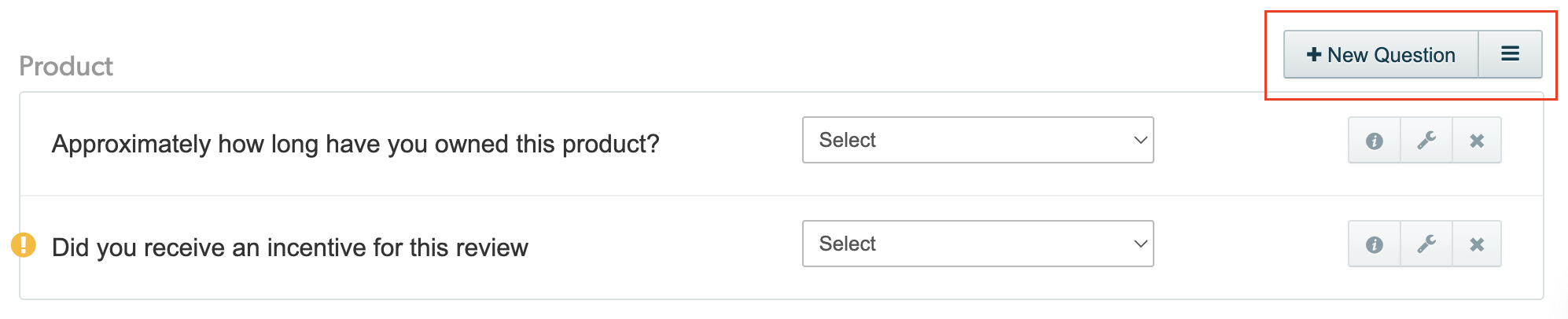
Select + New Question.
-
Locate the
Question ID: OrderNumberand select Add This Question.
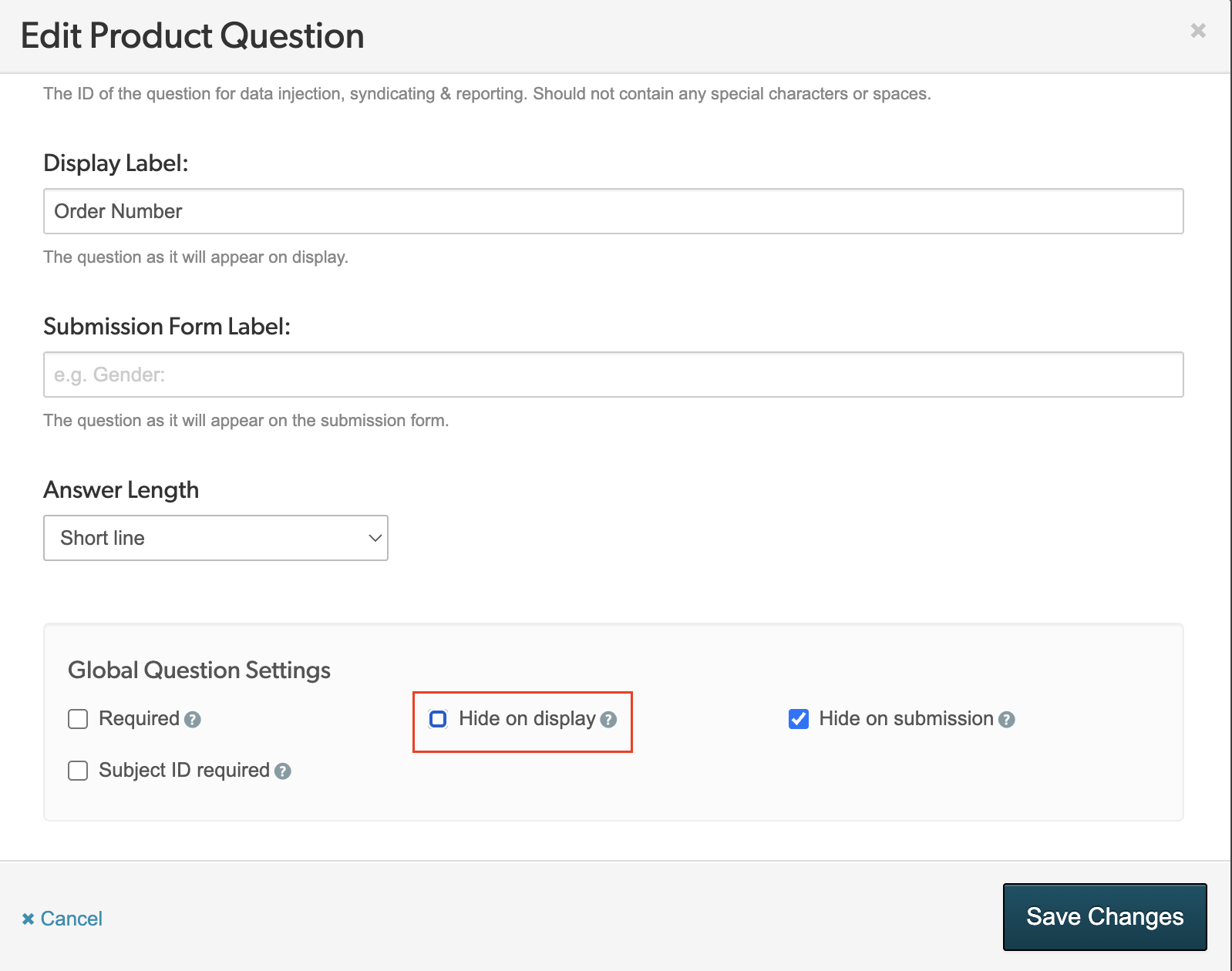
- To show or hide order IDs on product display pages (PDPs), open Edit Product Question dialog, go to Global Question Settings section, and check or uncheck Hide on display. Checking the box hides the order ID; clearing it displays it on the PDP.
- Select Save Changes.
- Deploy the changes to your implementation.
For API clients: If you need to hide the transaction ID (Order ID) from the product page but still require it in the reviews.json response, follow these steps:
- Return to Step 8 and select the Hide on display setting.
- Go to the Bazaarvoice Portal tab.
-
From the upper-right corner, select the settings icon .
- Select API.
- In the API Keys page, click the required project.
-
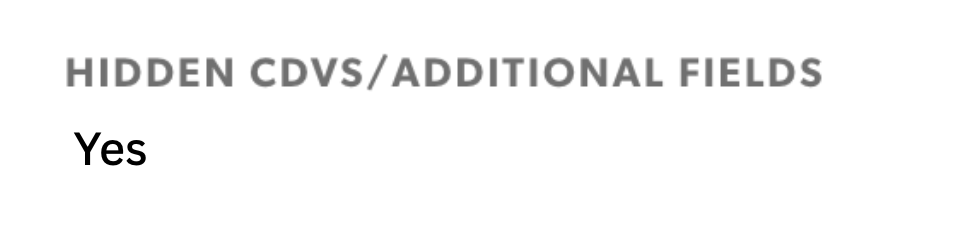
Set HIDDEN CDVS/ADDITIONAL FIELDS to Yes.
Configure incentivized review
Use the Question ID:IncentivizedReview to determine if a review was incentivized (i.e., did the user receive a Coupon, Cashback, Sweepstake, etc.).
- In the Submission Form Editor, add or locate the
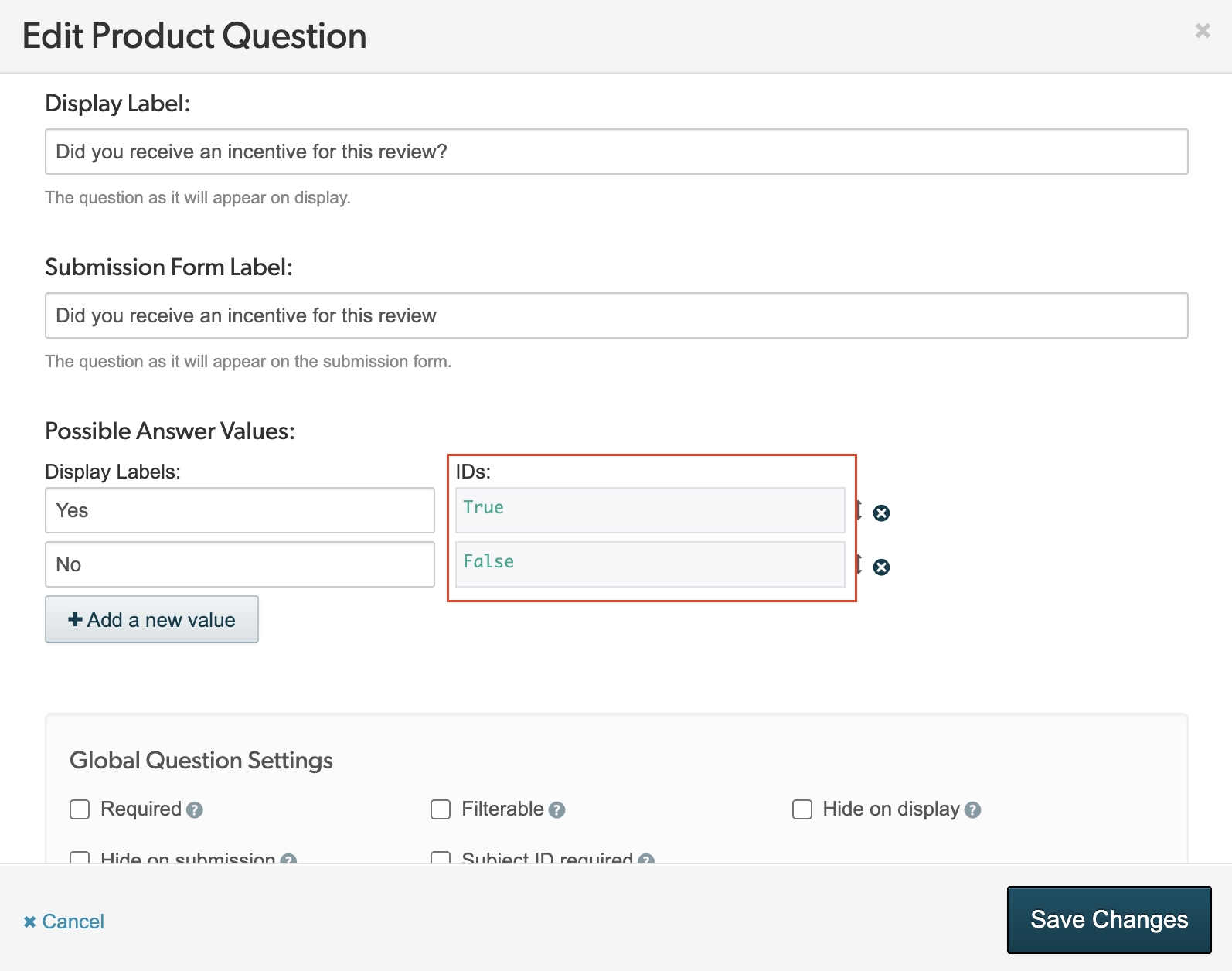
Question ID:IncentivizedReviewand select to edit. - Select + Add a new value to add an answer option (Display Label) for this question. Each option requires a Display Label and Display ID.
- Display Label: Can be customized to suit your brand voice. For example: Yes and No, Yeah and Nah, or Yup and Nope.
- Display ID: Must be set to either True or False.
- Select Save Changes.
-
Deploy the changes to your implementation