The incentivized review badge indicates that a consumer reviewed a product in exchange for a reward or incentive from your company.
An incentive can take the form of:
- Free products: Receiving a product or service at no cost.
- Discounts: A reduction in price for the reviewed item.
- Loyalty points: Earning reward points, credits, or gift cards.
- Sweepstakes entry: Gaining an entry into a contest or prize draw.
Learn about syndicated incentivized reviewbadges.
Why incentivized disclosure is mandatory
You are required to inform consumers, using either a graphic badge, a text label, or both, whenever a reviewer receives any form of compensation for their feedback. Transparency and trust is a core part of the Bazaarvoice Authenticity Policy  .
.
Failing to disclose an incentivized review violates the following key consumer protection laws:
-
European Regulations: The EU Omnibus Directive unequivocally demands transparency for all consumer-generated content.
-
US Federal Trade Commission (FTC): The FTCrequires clear and conspicuous disclosure whenever a free product, discount, or payment, exists between a reviewer and a seller.
- UK Digital Markets, Competition & Consumers Act: The DMCCA Requires incentivized reviews to be clearly labeled.

Triggering the incentivized badge
To automatically display the Incentivized Review badge, your technical team must pass the <transactionID> (Order ID) and the <incentivizedReview> tag to Bazaarvoice. These tags verify the source of the review and ensure the correct disclosure appears on the product page.
You can send the transaction ID (order ID) and incentivized review data to Bazaarvoice using any of the following methods:
Learn more about tagging requirements.
Badge display and customization
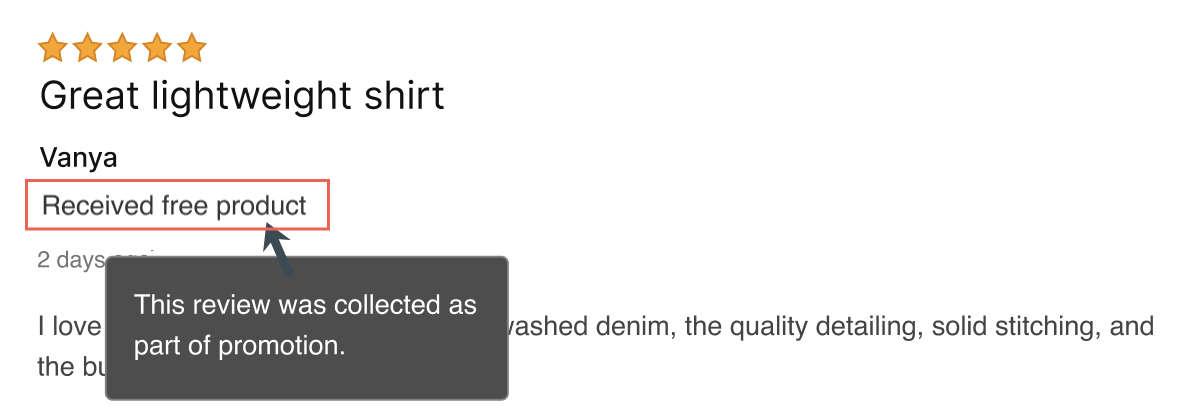
You'll typically find the Incentivized badge positioned directly above or below he reviewer's name. It can have also have a display label (optional) and a detailed description (optional) that appears on hover.
Where to display incentivized review badge
Full disclosure that a consumer received an incentive, such as a free product or discount, must be displayed clearly.
Use any of the following formats to highlight a review was incentivized:
- Icon only
- Text only
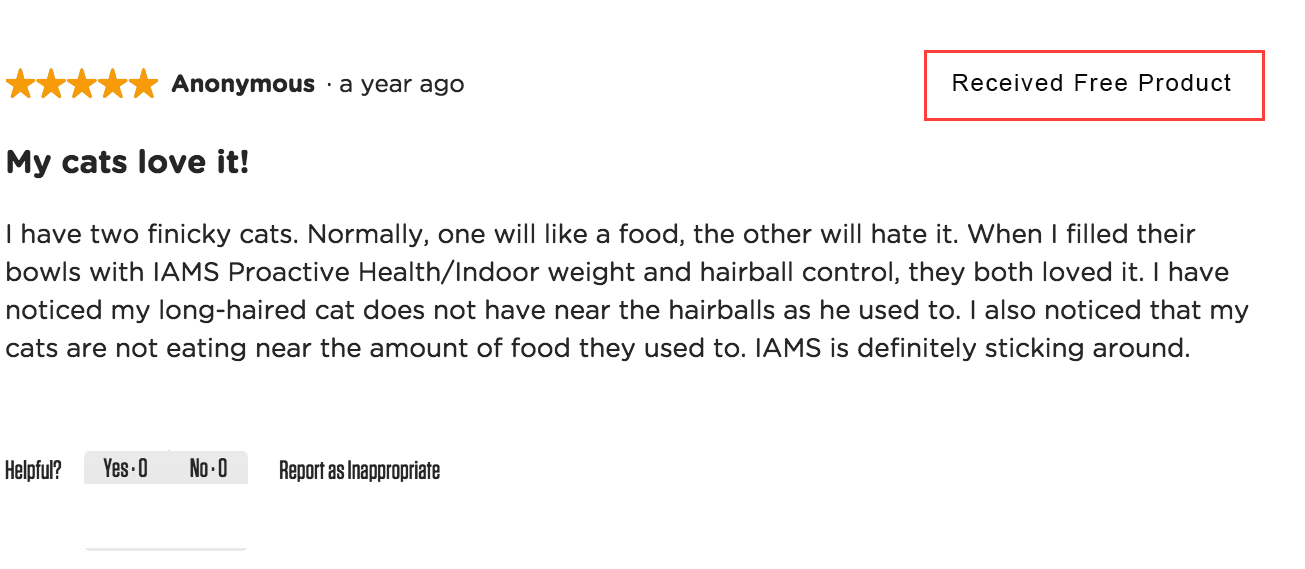
- Icon + text
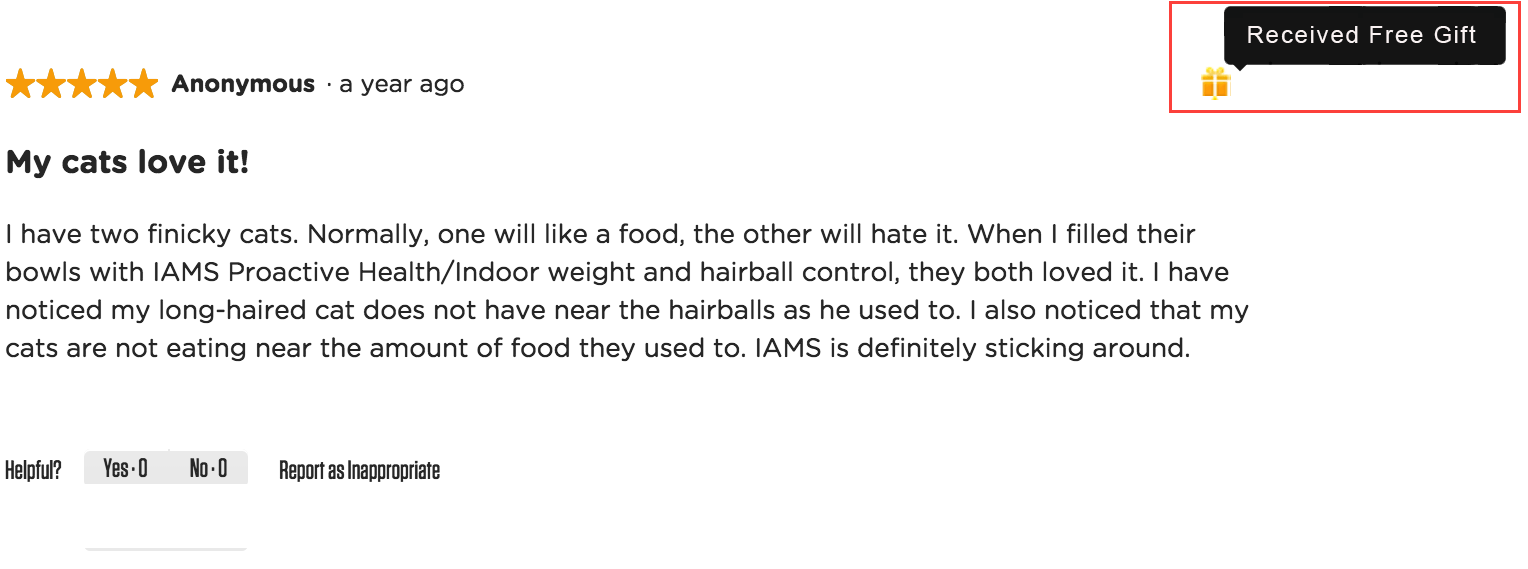
- Icon + tooltip
|
Incentivized badge: Icon only 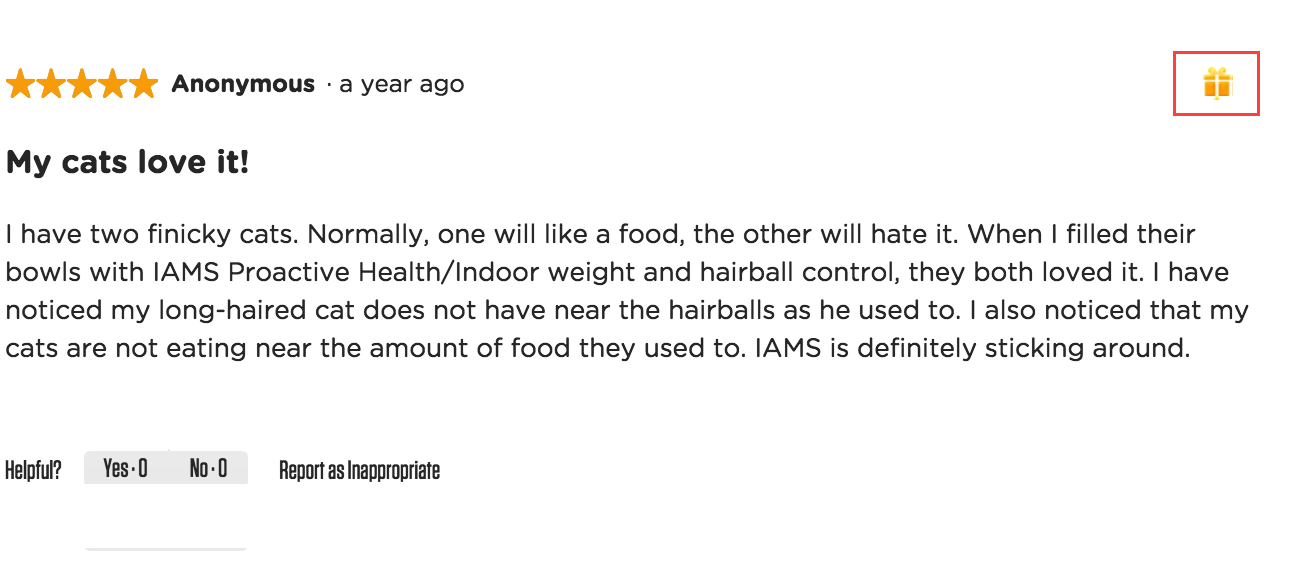
|
Incentivized badge: Text only
|
|
Incentivized badge: Icon + text 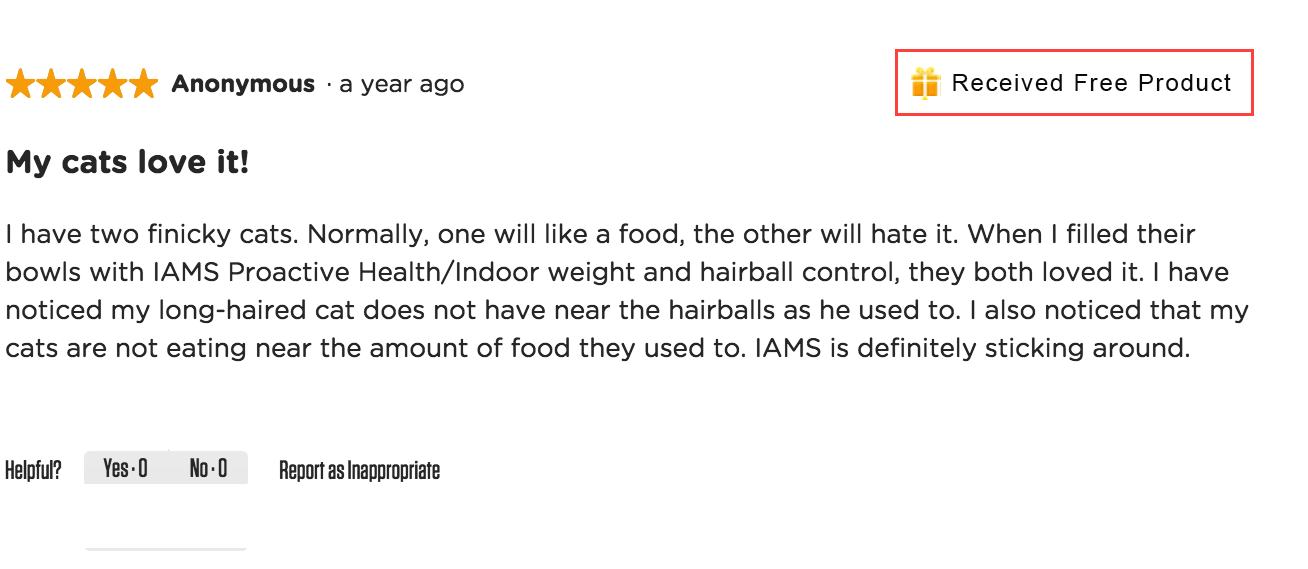
|
Incentivized badge: Icon + tooltip
|
Set up incentivized review badges
To automate the assignment of the incentivized badge, first decide how you want to assign this badge.
Incentivized badges can be assigned to reviews in two ways:
-
Dedicated submission form (Steps 1&2): Create a dedicated incentivized submission form that indicates that the reviewer has been incentivized. This form would only be sent to to consumers who received an incentive. Badge credentials are injected into the review submission form.
-
ssURL and data injection (Steps 1&3): Create a simple submission form link (ssURL) that automatically marks the review as incentivized. The following data
&IncentivizedReview=Trueis injected into the ssURL link. This is especially useful for campaigns where you offer incentives for reviews.
<https://example.com/products?productId=XYZ&IncentivizedReview=True>
Follow these configuration steps based on your chosen assignment method.
Step 1: How to enable the incentivized review badge
- Sign in to Bazaarvoice Portal.
- Select your instance.
- From the upper-right corner, select the settings icon
 .
. - Select Ratings & Reviews.
- Go to the Implementations section and select Edit next to the Implementation you want to configure.

- In the left-hand menu, select the Badge Editor.
- Under Token-based Badges, locate the row for Incentivized Badge - Native Reviews and turn on the toggle switch to enable this badge.
- (Optional) Select Edit to customize the default badge or icon. Learn more about styling badges.
- Deploy the changes to your implementation.

Step 2: How to edit the incentivized question
Use the Submission Form Editor tool to edit the pre-configured incentivized review question text "Received free product". You cannot create a new incentivized question. You can only edit the default question.
When a consumer answers Yes to this question, the system automatically assigns the value True to the review, which is what triggers the incentivized badge to appear on the published review.
- Sign in to Bazaarvoice Portal .
- Select your instance.
- From the upper-right corner, select the settings icon .
- Select Ratings & Reviews.
- Go to the Implementations section to locate your implementation site.
- Select Edit next to the Implementation you want to configure.
- In the left-hand menu, select the Submission Form Editor tool.
- Select the configuration icon to the right side of the incentivized product question "Received free product". The Edit Product Question modal appears.Received free product" is the default question that the submission form editor generates with the IncentivizedReview question ID.
- Edit fields as required:
Field name Selection/Example Purpose Question Type • Single Select (default option)
• Free Text
Single Select means the reviewer can only choose a single answer, either Yes or No. Question Name Received Free Product Internal use only. Question ID Example: IncentivizedReview
This field cannot be edited.Question ID is needed for data injection. Display Label You can replace the default “RECEIVED FREE PRODUCT" with “INCENTIVIZED” or "I would like to be entered into the sweepstakes." Label displayed on your published site.
The submission form editor automatically uses "RECEIVED FREE PRODUCT" as the default label for the IncentivizedReview question ID.Submission Form label Example: Did you receive an incentive for this review? Question displayed on the review submission form. Possible Answer Values & IDs Example answers: Yes, No
Example answer IDs: True, False
Answer ID cannot be edited.The Answer ID True value is required for data injection. This ID triggers the incentivized badge. Global Questions Settings Select from the following question options:
• Required
• Filterable
• Hide on display page
• Hide on submission form
• Subject ID required for a product
If collecting reviews using an email campaign, select the "Hide on submission" checkbox.
Hiding the question prevents the reviewer from manually changing the answer captured automatically by data injection. - Select Save and Add to form.
- Deploy the changes to your implementation.
Notes
- The “Received free product” question is the default question that is configured with the IncentivizedReview question ID.
- You cannot add a custom question for incentivized content because the "Received free product" question already uses the appropriate question ID.
- You can however update the question display label. For example, if you're using a site wide campaign to collect incentivized reviews, such as a sweepstakes, we recommend that you indicate this in the question’s display text or label, such as "I would like to be entered into the sweepstakes."
- It’s important to remember that the "Received free product" question is defined as a product question and not a people question.
Step 3: How to generate a simple submission form link (ssURL)
Embed a simple submission URL (ssURL) directly into your review request emails or text messages. This link takes reviewers straight to the product review form.
Submission Link Generator tool
|
|---|

To generate a simple submission URL:
- Sign in to Bazaarvoice Portal.
- From the Help & Support section on the Portal home page, select the Access the Support Community link.
- From the Support Community navigation menu, select the ssURL tool. The Submission Link Generator tool appears.
- To generate your submission form URL link, configure the following settings: or parameters:
Field Example Purpose Display Integration Select which hosted display platform you’re using.
• v1
• v2 (default)
The latest hosted display version is v2. If unsure, contact your Bazaarvoice representative. Environment Select
• Staging (default)
• Production
Select the Production environment option to create a public (live) ssURL link. Client instance Example: EnduranceCycles Enter the instance name exactly as it is listed in the Portal. Deployment zone ID Example: main_site Typically, this is known as your main implementation Site ID. Find you site ID. Locale Example: en_US If you’re not using US English (en_US), enter the correct locale code. Contact Bazaarvoice Support if you’re not sure what locale code to enter. bvaction • normal submission (default)
• generic review submission - product picker
◦ Prevent close
◦ Filter by:
▪ all products (default)
▪ Category
▪ product family
- Normal submission refers to a review submission form. Enter a single product ID from your product catalog.
- Generic review submission refers to multiple product reviews. Select either:
◦ Prevent close: This setting prevents the submission form window from closing automatically, so that the reviewer reviews all listed products.
◦ Filter by: products, category or product family.
Campaign ID Example: ss_URL_staffreviews Required for reporting purposes. Data Injection Enable data injection (default):
Set the IncentivizedReview field to True.
Leave QuestionID and AnswerID blank. These fields will be automatically populated.You are pre-populating (injecting) data into the submission form URL link. This data will indicate that the reviewer received an incentive.
Both the native and syndicated incentivized badges key off the same key/value pair.IncentivizedReview:True - From the Results section, copy and paste the generated ssURL into your review request email.

Examples of single-product ssURLs
Syndicated incentivized reviews
There are two distinct types of incentivized (token-based) badges:
| Badge type | Applies |
|---|---|
| Incentivized badge - Native reviews | Reviews written directly on your site. |
| Incentivized badge - Syndicated reviews | Reviews that were written on one site and shared to the another site across the Bazaarvoice Network. Learn more about syndication. |
What is a 'syndicated' incentivized review?
A syndicated incentivized review is an incentivized review that is submitted to one site and then automatically shared (or syndicated) across the Bazaarvoice Network to partner retail sites.
Use the Badge Editor to enable the 'Incentivized badge - Syndicated reviews' badge (one-time only step):
What is an attribution statement?
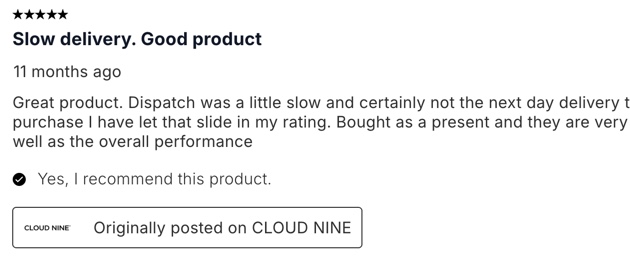
The attribution statement Originally posted on {SITE_NAME.COM} is a mandatory text disclosure designed to clearly identify the original source site where a review was initially submitted.
This statement will appear on all syndicated content regardless of it being incentivized or not.

Learn more about content attribution.
Journey of a review attribution statement
This example tracks how a single review's attribution statement remains consistent as it moves across the network:
- Original source: A consumer writes a review for a Hike product on WALLMART.COM.
- Import: Hike imports the review to their own site.
- Attribution on Hike's site: The review displays on Hike’s site as: "Originally posted on WALLMART.COM."
- Syndication: Hike then shares or syndicates the same review to BARGET.COM.
- Attribution on Target's site: The review displayed on Barget's site shows the exact same original attribution: "Originally posted on WALLMART.COM."
Sampling reviews & attribution statement rules
Attribution statement requirements depend on where your sampling reviews display:
-
Native brand site display: Sampling reviews (such as those from Influenster) that appear directly on your own website don’t need to show third-party attribution. They display as native reviews.
-
Full network syndication: When you syndicate reviews across your full partner network, each review carries a brand origin statement. For example, 'Originally posted on [brand site]' instead of an 'Originally posted on Influenster.com' attribution. This signals to consumers that the review originated on your site, not the retailer's.
-
Single retailer sampling campaigns: These campaigns collect reviews exclusively for a single retailer site.
- Standard display: most single-retailer campaigns display reviews natively. No attribution statement required.
- Major retailer exceptions: certain major US retailers require an 'Originally posted on Influenster.com' attribution statement instead.
ReviewSource reviews
ReviewSource is Bazaarvoice's review collection service for organic (non-sampling) reviews. Reviews collected through it always carry an 'Originally posted on Influenster.com' attribution, whether displayed natively or syndicated to a retailer. This cannot be removed or turned off.
Display incentivized reviews only
To enable filtering and allow consumers to view only incentivized reviews on a Product Display Page (PDP), follow these steps:
- Sign in to Bazaarvoice Portal .
- Select your instance.
- From the upper-right corner, select the settings icon .
- Select Ratings & Reviews.
- Under Implementations, select Edit next to the implementation you want to configure.
- From the left-side menu, select Display Options.
- Select the Ratings & Reviews tab.
- Go to the Review Filtering section.
- Enable the Content Filter Control option.
- Deploy the changes to the implementation.
- To view only incentivized reviews, select Yes from the Received an incentive for this review filter on your product display page (PDP).
Display non-incentivized reviews only
To allow consumers to view only non-incentivized reviews on a PDP, follow these steps:
-
Sign in to Bazaarvoice Portal.
- Select your instance.
-
From the upper-right corner, select the settings icon .
- Select Ratings & Reviews.
-
Under Implementations, select Edit next to the implementation you want to configure.
- From the left-side menu, select Display Options.
- Select the Ratings & Reviews tab.
- Go to the Review Filtering section.
-
Enable the Content Filter Control option.
- Next, go to the Review Filter Type (DMCCA) section.
- Enable the Non-incentivized Review Filter option.
-
Deploy the changes to the implementation.
- To view only non-incentivized reviews. select Non-incentivized Reviews filter > Show non-incentivized reviews on your product display page (PDP).
Important:
- Bazaarvoice recommends enabling only one incentive-specific filter option at a time on your Ratings & Reviews display.
- To comply with the DMCC Act and display only non-incentivized reviews on your product display page, disable the Incentivized Review filter.
- To disable this filter, set the "Did you receive an incentive for this review?" question to non-filterable, when configuring the review submission form.
Apply filtering to Rating Summary
By default, the Incentivized Review filter and Non-incentivized Review filter only update the review container, which is a list of individual reviews on the product display page (PDP). The review statistics (average star rating and review count) in the Rating Summary still reflect all reviews.
| Filter scope | What gets filtered |
|---|---|
| Review container only (default) | Individual reviews displayed |
| Review container and review statistics | Individual reviews displayed, plus the Rating Summary |
To allow filtering by review statistics, enable these global configuration options:
- Apply filters to Rating Summary
- Only Show Displayed Locale Statistics
Refer to Configure the global options for detailed steps.
Show the incentivized review count
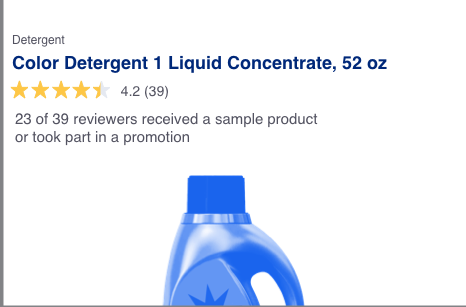
You can also display a summary count of incentivized reviews for each product. This count is referred to as the incentivized review count. The incentivized review count typically appears directly below the product's five-star average rating in the following display modules.
To enable incentivized review count
-
Sign in to Bazaarvoice Portal.
- Select your instance.
-
From the upper-right corner, select the settings icon .
- Select Ratings & Reviews.
- Under Implementations, select Edit next to the implementation you want to configure.
- From the left-hand menu, select Display Options.
- Select the Ratings & Reviews tab.
-
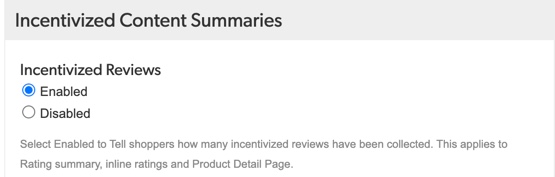
Scroll down the page, to the Incentivized Content Summaries section.
-
Under Incentivized Reviews, select Enabled.
-
Deploy the changes to your implementation.
Incentivized review count text
Bazaarvoice recommends using the following text to describe the incentivized review count. The text is available in all supported languages; it cannot be altered.
| Locale | Suggested text |
|---|---|
| English | n of n reviewers received a sample product or took part in a promotion. |
| French | n sur n consommateurs ont reçu un échantillon de produit ou ont participé à une promotion. |
| German | n von n Bewertern erhielten ein Test-Produkt oder nahmen an einer Aktion teil.
|
If you enable the Incentivized Content Summaries (Review Count) feature but you don't have any incentivized reviews, the summary text will not appear on your site.
Find your site ID
Follow these instructions to identify your deployment or implementation site ID.
main_site, is a unique identifier in the product page URL that pinpoints the exact site implementation you need to edit.
- Go to any Product Display Page (PDP) on your live site.
- Right-click anywhere on the page and select Inspect from the context menu. This will open the browser's developer tools.
- Ensure the Elements tab is active to view the page source code.
- Search for the Deployment URL: Press Command + F (Mac) or Control + F (Windows) to open the search bar within the source code panel.
- Enter the following partial URL into the search bar: HTML
https://apps.bazaarvoice.com/deployments/
- Press Enter.
- Scan the search results to find the complete
<script>tag. It will look similar to this:JavaScript<script type="text/javascript" src="https://apps.bazaarvoice.com/deployments/example_company_name/main_site/production/en_GB/bv.js"></script>
example_company_name/.
