The Staff (Affiliation) badge indicates a contributor is employed by (or affiliated with) your company. You can choose from five distinct setup methods.
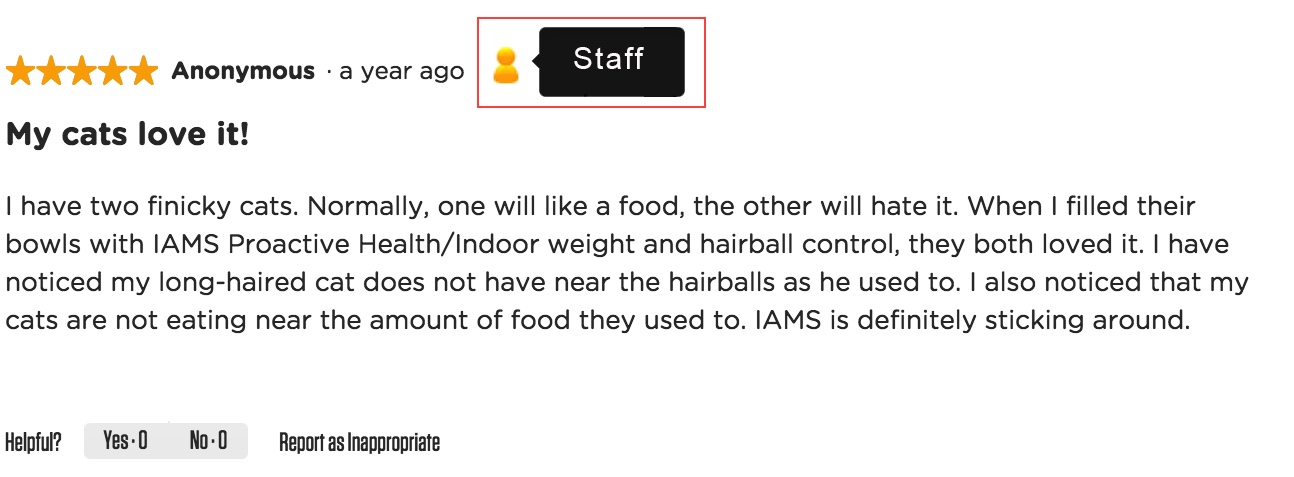
Watch this video for a staff badge overview.

Five staff badging methods: Pros and Cons
Select a Staff (Affiliation) badging method based on your technical and syndication needs.
The table below compares the five setup options to help you balance ease of implementation with long-term scalability.
| Setup method | Advantages (Pros) | Disadvantages (Cons) | Syndication support |
|---|---|---|---|
| 1. Contributor assignment in Portal |
|
| Yes *Recommended |
| 2. Response-based badge (submission form) |
|
| No |
| 3. Automated using data injection (ssURL) | Highly reliable; badge is automatically assigned using data passed from the review submission form. |
| No |
| 4. Add disclaimer to review text |
|
| Yes *Manual fallback |
| 5. UAS token-based Badging (Advanced) |
|
| Yes *Very technical |
Setup options
Bazaarvoice provides five different setup methods for deploying staff badges.
Method one: Contributor ID assignment in Portal
Content Administrator Account Administrator
We strongly recommend this method for all reviews intended for syndication. Under this method, the Staff (Affiliation) badge is tied to a specific contributor ID rather than an individual user account.
|
|---|
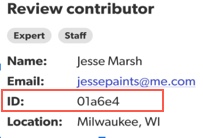
To manually assign the staff badge, you must first find the relevant reviewer contributor ID.
- Submit the initial review: The staff member must first submit a product review. This action causes the system to generate a unique Review Contributor ID.
- Locate the review: This initial submission will likely be filtered by the Authenticity Team and assigned the moderation code
[STAFF] Requires Staff Badging. - Assign the badge: Once you locate the review, find the associated contributor ID. You can then use this ID to permanently assign the Staff badge to the contributor profile.
Step 1: Find review contributor ID
- Sign in to the Bazaarvoice Portal
 .
. - From the navigation bar, select Ratings & Reviews > Reviews.
- From the list view, search or filter to find the review that your employee submitted.
- Select View details.
- In the Review contributor panel, make a note of the ID for the next step.

Step 2: Add Staff badge to contributor details
Content Administrator Account Administrator
To add a staff badge to a contributor:
-
Sign in to the Bazaarvoice Portal.
- From the navigation bar, select Ratings & Reviews > Reviews.
- From the list view, navigate to the action menu (...) in the upper-right corner.
- Select Manage contributors. The Contributors page appears.
- Search for the Review Contributor ID you noted in the preceding step.
- Select Contributor ID hyperlink.
- On the Contributor details page, go to the Badges section.
- Select Staff from the dropdown.
- Select Submit.
[STAFF] Requires Staff Badging moderation code will be automatically reversed during the Authenticity Team's weekly audit. When the review is live, the Staff badge will display.
Method two: Add a response-based badge (Submission form)
Staff badging is triggered when an employee answers a specific question on the review submission form (such as 'Are you an employee?'). This creates a response-based badge, often called a CDV badge, which uses that specific answer to display a 'Staff' label on native reviews on your site.
Step 1: Add a staff question to your review submission form
- Sign in to Bazaarvoice Portal.
- Select your instance.
- From the upper-right corner, select the settings icon
 .
. - Select Ratings & Reviews.
- Go to the Implementations section.
- Select Edit next to the Implementation you want to configure.
Note: If you manage multiple site implementations, you must first determine which configuration file to edit. To confirm your specific site, examine your product display page (PDP) URL reference on your live site. Learn how to find your site ID.
- From the left-side menu, select the Submission Form Editor.
- Select + New Question beside the People question category. A list of predefined questions for that category appears.
-
To add a predefined question, select Add a Custom Question. The Add a New People Question modal appears.
Complete all the required fields:
Field name Selection/Example Purpose Question Type • Single Select (default option)
• Free Text
Allows the reviewer to pick only one answer (example, Yes or No). Can be configured as a single choice field or dropdown. Question Name Example: Employee Internal use only. Used for sorting questions during setup. Question ID Not required Needed for data injection, syndication, or reporting. Display Label Example: Staff Employee Label displayed on your published site. Submission Form label Example: Are you a company employee? Question displayed on the review submission form. Possible Answer Values & IDs Values: Yes, No
IDs: ID_yes, ID_NoThe ID_Yes value is required to trigger staff badging on the review. Global Questions Settings
Select from the following options:
• Required
• Filterable
• Hide on display
• Hide on submission form
• Subject ID required for a product
• (Optional) Select Required if you want to make the staff question mandatory.
• (Optional) Select Hide on Display to hide the staff question on the display page.
• Don’t select the Hide on submission checkbox.
- Select Save and Add to form.
- Deploy the changes to your implementation.
Step 2: Add question to a response-based badge
You can add your company branded badge to replace the standard (default) Staff badge.
-
Sign in to Bazaarvoice Portal.
- Select your instance.
-
From the upper-right corner, select the settings icon .
- Select Ratings & Reviews.
- Select Edit next to the implementation you want to configure.
- From the left-side menu, select the Badge Editor.
-
Select Add a response-based question. The Add a New Badge modal appears.
Complete all required fields.
Field name Selection/Example Purpose Question Example: Are you a company employee? Select the question you pre-defined in the previous step. Answer Example: Yes Allows the reviewer to pick only one answer, for example, Yes or No.
Can be configured as a single choice field or dropdown.Label Example: Employee Review This label appears when no custom badge image is uploaded. Description Example: This badge indicates that the reviewer is employed by the product company. This text displays as a tooltip when a consumer hovers over the badge. Custom badge image (optional) 
Upload a branded badge to replace the standard default badge image.
Learn more about styling badges. - Select Save Changes.
- Deploy the changes to your implementation.
Method three: Create a simple submission link (ssURL)
Embed a simple submission URL directly into your review request emails or text messages.
- This ssURL link will bring a reviewer directly to the correct product review submission form.
- Once the employee submits their review, the system automatically recognizes them as a staff member because the ssURL was pre-populated (data injection) with the necessary employee data.

Step 1: Add a staff question to the review submission form
-
Sgn in to Bazaarvoice Portal.
- Select your instance.
-
From the upper-right corner, select the settings icon .
- Select Ratings & Reviews.
- Go to the Implementations section.
-
Select Edit next to the Implementation you want to configure.
Note: If you manage multiple site implementations, you must first determine which configuration file to edit. To confirm your specific site, examine your product display page (PDP) URL reference on your live site. Learn how to find your site ID. - From the left-side menu, select the Submission Form Editor.
- Select + New Question beside the People question category.
-
Select Add a Custom Question. The Add a New People Question modal appears.
Complete all required fields:
Field name Selection/Example Purpose Question Type • Single Select (default option)
• Free Text
Allows the reviewer to pick only one answer, for example, Yes or No. Can be configured as a single choice field or dropdown. Question Name Example: Employee question Internal use only. Unique, descriptive name used for sorting questions during setup. Question ID Example: Employee_question Required for data injection in step 3. It’s also used in reporting and syndication. Should not contain any special characters or spaces. Display Label Example: Staff Review Label displayed on your published site. Submission Form label Example: Are you a company employee? Question displayed on the review submission form. Possible Answer Values & IDs Example value: Yes, No Example Answer ID: ID_yes, ID_No The Answer ID ID_Yes value is required for data injection by the ssURL generator tool. This ID triggers staff badging. Global Question Settings Select from the following options:
• Required
• Filterable
• Hide on display page
• Hide on submission form
• Subject ID required for a product
Select the Hide on submission checkbox. Hiding the question prevents reviewers from manually changing the answer injected by the system. - Select Save and Add to form.
- Deploy the changes to your implementation.
Step 2: Add staff question to token badge
-
Sign in to Bazaarvoice Portal .
- Select your instance.
-
From the upper-right corner, select the settings icon .
- Select Ratings & Reviews.
- Select Edit next to the production implementation you want to configure.
- From the left-side menu, select the Badge Editor.
-
Under Token-based badges, select + Add a new badge. The Add a New Badge modal appears.
Complete all required fields
Field name Selection/Example Purpose Question Example: Are you a company employee? Select the question you pre-defined in the previous step. This question will be displayed on the review submission form. Answer Example: Yes Select the answer you pre-defined in the previous step. Staff reviewers will be automatically badged if their answer is “Yes”. Label Example: Employee Review This label appears when no custom badge image is uploaded. Description Example: This badge indicates that the reviewer is employed by the product company. This text displays as a tooltip when a consumer hovers over the badge. Custom badge image (optional) Upload a branded badge to replace the standard default badge image. Learn how to style badges. - Select Save Changes.
- Deploy the changes to your implementation.
Step 3: Create a simple Submission form link (ssURL)
|
Submission Link Generator tool
|
|---|

To generate a simple submission URL:
-
Sign in to Bazaarvoice Portal.
-
From the Help & Support section, select Access the Support Community .
- From the Support Community navigation menu, select ssURL tool. The Submission Link Generator tool appears.
-
To generate your submission form URL link, configure the following settings:
Field Example Purpose Display Integration Select which hosted display platform you’re using.
• v1
• v2 (default)
The latest hosted display version is v2. If unsure, contact your Bazaarvoice representative Environment Select your environment.
• Staging (default)
• Production
Select Production environment to create a public (live) ssURL link. Client instance Example: EnduranceCycles Enter the instance name exactly as it appears in Portal. Deployment zone ID Example: main_site This is typically your main implementation Site ID. Learn how to find you site ID. Locale Example: en_US If you’re not using US English (en_US), enter the correct locale code. Contact Bazaarvoice Support if you’re not sure what locale code to enter. bvaction Select from the following options:
• normal submission (default)
• generic review submission - product picker
◦ Prevent Close
◦ Filter by:
▪ all products (default)
▪ category
▪ product family
• Normal submission refers to review submission form. Enter the single product ID from your product catalog.
• Product picker refers to multiple product reviews.
•The Prevent close setting prevents the submission form window from closing automatically, so that the reviewer reviews all listed products.
Campaign ID Example: ss_URL_staffreviews Required for reporting purposes. Data Injection Enable data injection (default):
The following fields need to be populated with the correct information:Add QuestionID: ID_Employee
Add AnswerID: ID_Yes
Pre-populates the submission form URL link to indicate the reviewer is an employee. - From the Results section, copy and paste the generated simple submission URL into your review request email or text message
Examples of single-product ssURLs
Method four: Add staff disclaimer to review text
We do not recommend this option, but it is the lowest-effort, non-technical approach.
When an employee writes a review, they manually enter a fixed disclaimer in the body text of the review such as "I am an employee at Endurance Cycles".
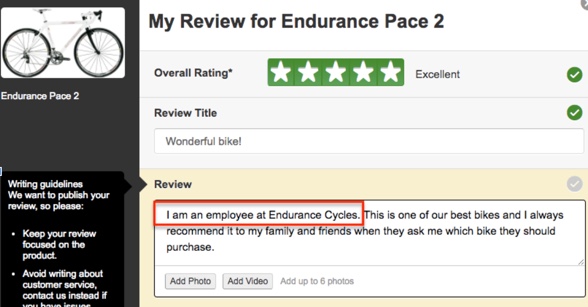
- While the text itself is syndicated, this method relies entirely on the employee's compliance to add this disclosure statement.
- This method does not use any of the platform's automated badge tracking features.
Method five: UAS token-based badging (Advanced)
For clients using Client Mastered (Site) Authentication, you can pass contributor attributes, such as a "Staff" designation, directly within the secure authentication token.
-
How it works: When an employee signs into your site and goes to write a review, your system generates an encrypted UAS token. This token tells Bazaarvoice exactly who the user is and that they should be granted a Staff badge.
-
The Result: The badge is applied automatically the moment they submit their review. Because this is tied to their authenticated identity, the badge is verified and will syndicate across the Bazaarvoice Network.
Technical resources
This method requires developer support for encryption and token generation, please refer to the following technical documentation:
- Contributor-ID badges (Staff affiliation badge):
Conversations API Documentation - Authentication overview:
Client Mastered Authentication Guide - Token security:
UAS Token Generation Details
Simple submission URL (ssURL) vs. UAS token-based badging
While both methods use data injection, they function differently:
- Simple submission URL (ssURL): Injects data into a link. This is not verified for the Bazaarvoice Network and does not syndicate.
- UAS token-based badging: Injects data into the user's secure login session. This ensures the badge is verified and will syndicate across the Bazaarvoice Network.
FTC compliance and syndication limits
To comply with the Federal Trade Commission (FTC) regulation rules, all staff-written reviews must include a clear and conspicuous disclosure. Failure to disclose staff affiliation can result in significant legal penalties, effective from October 21, 2024.
For the Bazaarvoice platform, a violation is triggered every time a consumer views a review that lacks this staff disclosure. Bottom line: One undisclosed review viewed by 1,000 people equals 1,000 violations.
Recommended staff badging method
There are five different staff badging setup methods.
To ensure compliance across the Bazaarvoice Network, we strongly recommend the Contributor ID staff badging method.
- Guaranteed syndication: Staff labels assigned to a contributor ID profile carry over to syndicated reviews; ensuring the disclosure follows the content to every retail destination.
- Automatic protection: Marking a contributor profile as Staff instantly updates all past and future reviews from that individual.
- Legal audit trail: This method maintains a permanent record in the Portal, simplifying compliance management and reporting.
Response-based (CDV) staff badges display on your native site; but do not syndicate to the retailer network. This can lead to compliance gaps.
Find your site ID
Follow these instructions to identify your site ID (implementation ID) .
- Go to any Product Display Page (PDP) on your live site.
- Right-click anywhere on the page and select Inspect from the context menu. This will open the browser's developer tools.
- Ensure the Elements tab is active to view the page source code.
- Search for the Deployment URL: Press Command + F (Mac) or Control + F (Windows) to open the search bar within the source code panel.
- Enter the following partial URL into the search bar: HTML
https://apps.bazaarvoice.com/deployments/
- Press Enter.
- Scan the search results to find the complete
<script>tag. It will look similar to this:JavaScript<script type="text/javascript" src="https://apps.bazaarvoice.com/deployments/companyname/main_site/production/en_GB/bv.js"></script>
