Use the social inbox in Bazaarvoice Vibe to respond to comments on posts in your Facebook, Instagram, or TikTok business accounts, or answer direct messages sent to your Instagram account.
Before you begin
Your Facebook, Instagram, or TikTok account must be connected to Vibe to use the inbox.
To start receiving and sending direct messages, follow these steps:
-
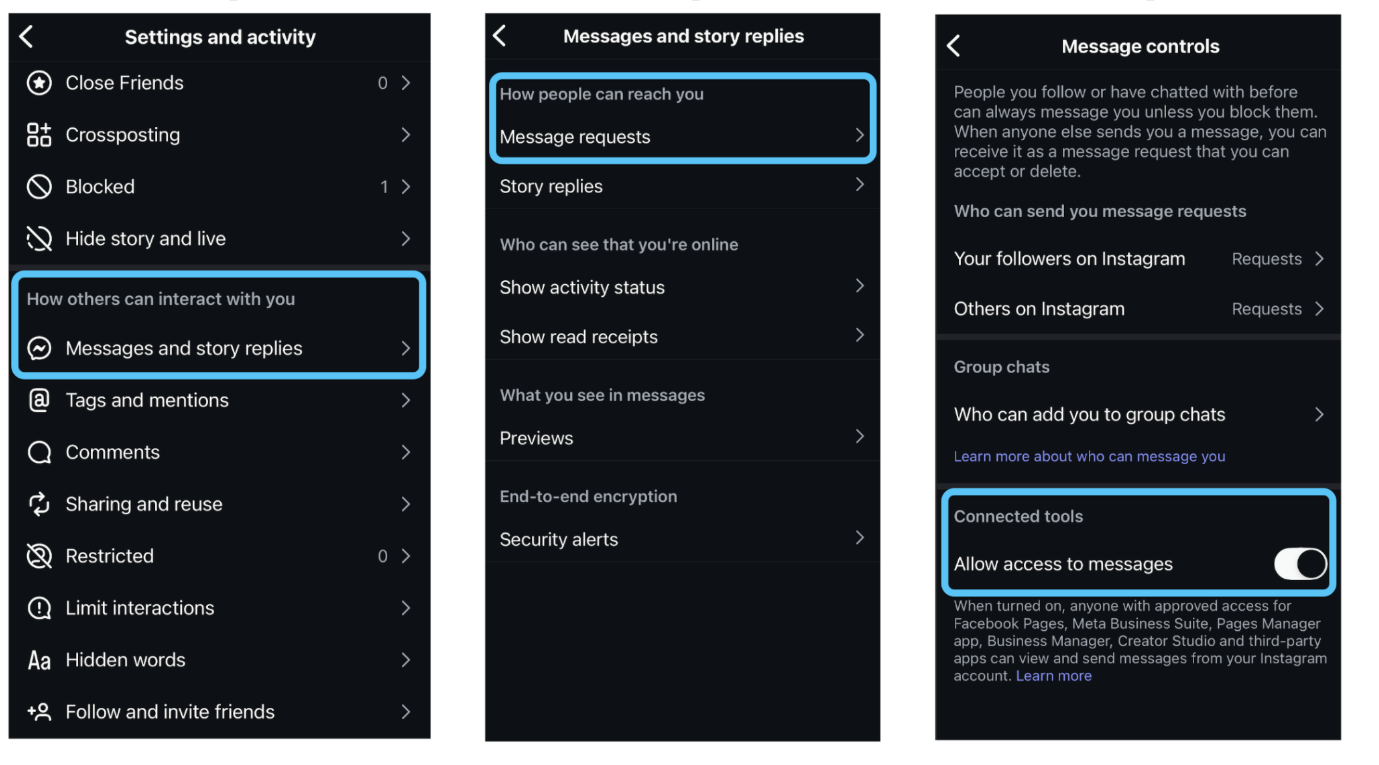
Open the Instagram app and go to your profile.
-
Select the menu (☰) icon in the top-right corner to open settings and activity.
-
Navigate to How others can interact with you.
-
Navigate to Messages and story replies and then Message requests.
-
Navigate to Connected Tools, and then select the toggle to switch on Allow Access to Messages.
- Refresh your Instagram account in Vibe by navigating to Settings > Social Media Accounts, and then selecting Refresh.

Open the inbox
In Vibe, select Inbox from the top navigation bar.
Use the inbox
View comments
In the inbox, you can view comments that have been left on your connected Facebook, Instagram, or TikTok business account’s posts.When you select a comment from the inbox, you'll be able to see:
- The selected comment
- Replies to the selected comment
- The post that the comment was left on
- The account information for the poster
- The account information for each commenter
From here, you can respond to the comment thread.
Respond to a comment or direct message
Follow these steps to respond to a comment, comment thread, or direct message:- Select the comment or direct message you want to respond to.
- Enter your response into the text box at the bottom of the page. You can include hashtags and @ mentions in your comments.
- (Optional) Add emojis by selecting the smiling face icon.
- Select Send.

AI writing tools
You can use AI to help improve or adjust your responses.
To access AI writing tools, start writing a response to a comment. After you've entered some text, select the sparkles icon below the response text field. From here, you can have the AI make the following adjustments to your text:
- Generate new reply
- Improve writing
- Fix spelling and grammar
- Make shorter
- Make longer
- Simplify language
- Change tone
Filter comments
There are multiple ways to filter comments in the inbox.
Filter by date
Follow these steps to filter comments by the date they were posted:- Select the drop-down menu labeled All Time.
- Select a pre-set date range like Last 7 Days or set a custom date range by selecting two dates on the calendar.
- Select Set Date.
Filter by status
Follow these steps to filter comments by the date they were posted:- Select the filter icon next to the date range drop-down menu.
- Select the checkbox next to the comment status you want to view. You can select multiple statuses.