Submission form questions enable you to collect valuable information from your customers that you can use for business purposes. The questions prompt customers to provide information about themselves and their sentiments about your products or service.
For example, authentic user sentiment and quotes about your products or services (directly from your customers), can be used in marketing campaigns and are invaluable in reviews.
Answers to submission form questions contextualize the review and enable consumers to make informed buying decisions. For example, a contributor might write a negative review about an item of clothing saying it doesn't fit well, but answers the Body Type question on the submission form. A potential customer reading the review (someone with a different body type) may ignore this negative review.
Watch this short video to learn how to use the submission form editor. If you require a descriptive transcript for this video, you can access this directly in our Wistia platform.
Refer to these sub-topics for more detailed information:
- Customize a submission form
- Submission form question categories and fields overview
- Question categories
- Question field types

 . You can also respond to events that occur in the Bazaarvoice application.
Customize a submission form
Watch this short video to see how you can configure submission form questions:
Follow these steps to configure a submission form:
- Before beginning, consider the types of questions available and how you want to design your form. Refer to Submission form questions, categories and fields to read about and determine the category of questions you want to configure.
-
Sign in to the Bazaarvoice Portal
 .
. - From the upper-right corner, select your instance.
- Select the settings icon
 .
. - Under Configuration, select Ratings & Reviews. The Site Manager lists all your active deployment zones and implementations.
- Under Implementations, select Edit next to the implementation for which you want to configure submission forms.
-
From the menu on the left side of the page, select Submission Form Editor under User Experience.
Note: You will also need to configure some sections outside the submission form editor. Locate this content by hovering over a grayed-out section and opening the link provided in the tooltip.
-
Select
 located in the upper-left corner of the page to find the product category name or ID of the submission form you want to modify.
The editor automatically displays the All Products submission form. If you add, edit, or delete questions in this particular form, the editor applies your changes to all linked forms.
located in the upper-left corner of the page to find the product category name or ID of the submission form you want to modify.
The editor automatically displays the All Products submission form. If you add, edit, or delete questions in this particular form, the editor applies your changes to all linked forms.
Note: The path to the selected category displays at the top of the editor beside Editing questions for:. If you select again, the word "Selected" appears on the right side of the newly selected category.
- If applicable, select the locale you want to edit from the drop-down list.
- To add a new question to the form, select + New Question beside the category of question you want to add. A list of predefined questions for that category displays.
- To add a predefined question, select Add This Question. You can edit the question name, display label, submission form label, possible answer values, and global question settings before saving. If you operate in multiple locales, you can also edit values for each locale.
- To add a custom question, select Add a Custom Question. You can select a question type and enter a question name, question ID, display label, submission form label, and possible answer values. The following table shows valid values for question type depending on the question category.
-
If your implementation includes a France locale (
*_FR), configure the Date of User Experience question:- Add the When did you use this product? question.
-
Ensure the Question ID is set to
DateOfUserExperience. - For France locales: This question is mandatory and cannot be edited or delisted. Ensure Global question settings are set to Required and Hide options are disabled.
- For other locales: You can edit the field labels or mark the question as non-mandatory based on your specific business needs.
-
Select Save Changes, or select
 in the upper-right corner to return to the editor without saving.
-
Select
 to modify an existing question. If the question appears in multiple categories, any edits will update the question in all categories where it appears.
-
If you need to delete a question from the form, select . If you delete a question from the All Products form, the editor removes the question from all linked forms.
-
If you need to change the default order of questions on the form, select
 > Move this section next to a question category to move an entire section of questions. Select the section you want to move and drag it to the preferred location on the submission form.
You can also reorder questions within a question category. SelectNote: The Base Review Questions, Basic User Info, and Net Promoter Question sections are locked and can't be moved. > Reorder questions in this section. Select the question you want to move and drag it to the preferred location.
-
If you added or modified a product question for a subcategory (chosen in step 5), this severs inheritance from the parent category. (Submission forms for product subcategories inherit questions from parent categories.)
 displays at the top of the submission form editor and next to the category in the product categories list. To revert the category to its original state and restore the link to the parent category, select
  . All of the changes made to the parent category while the child category was severed now appear in the child.
| Question Category | Valid Question Types |
|---|---|
| People questions | Single Select, Free Text |
| Ratings questions | Ratings, Slider |
| Product questions | Single Select, Multiselect Groups, Free Text |
Submission form question categories and fields
This section describes the available question categories and explains the elements you can configure for each question.
Watch this short video to see an overview of the submission form question categories:
Question categories
Submission form questions are grouped into the following categories:
-
Ratings—Optional secondary ratings relating to specific attributes (aka rating dimensions) of the product or service, such as the cleanliness or food quality at a restaurant.
Answers to these questions can help consumers determine if a specific aspect of a product or service meets their needs. You can customize the customer-facing labels for rating dimensions for your specific business.
-
People—Provide additional information about the contributor, such as age and gender. Answers to these questions help consumers identify with the person who wrote the review. People questions should map to consumer segments important to your business. For example, a cosmetics company might want to ask reviewers to identify their skin type.
You can customize the language of the questions to suit your business, and you can omit any recommended options. However, to benchmark this data accurately against other Bazaarvoice clients, you must use the default answer ranges. These can be powerful tools if you make these questions filterable by other users.
Note: Ratings & Reviews supports COPPA. Refer to the COPPA support statement for more information. -
Products—Enable contributors to provide insight into specific issues about a product (such as clothing fit, durability, or appearance) and how they use the product (level of expertise or usage frequency).
Answers to these questions help consumers learn more about the contributor and provide context for their experience with the product or service.
-
For example, if a person is shopping for a new camera to take family photos, and she sees a few low ratings from reviewers who are professional photographers, she can probably assume their concerns will not impact her satisfaction with the camera.
-
Use product questions instead of ratings questions when a specific attribute is best described on a two-option scale instead of a relative, value-based scale of 1-5 or a value-neutral scale. For example, you can collect information about product appearance using a product question ("How does your purchase fit?") with response values like "Runs narrow" and "Runs wide".
-
Or you can use a rating question ("How would you rate the appearance of the product?") with response values of 1-5.
-
Product questions provide more context than ratings questions. Answers to ratings questions don't provide consumers as much useful information as answers to product questions, especially if the contributor rates the product without writing a text review that provides context.
Note: Be aware that submission forms for product subcategories inherit questions from parent categories. Changes made to the submission form for a parent category are inherited by child categories.
For example, if you define a submission form for apparel, submission forms displayed for product subcategories in apparel (such as dresses or shirts) inherit questions from the main apparel submission form. By default, a change to a subcategory product's submission form severs the inheritance from its parent category.
-
Question fields
The following image shows the window in which you configure a new question or edit an existing question.
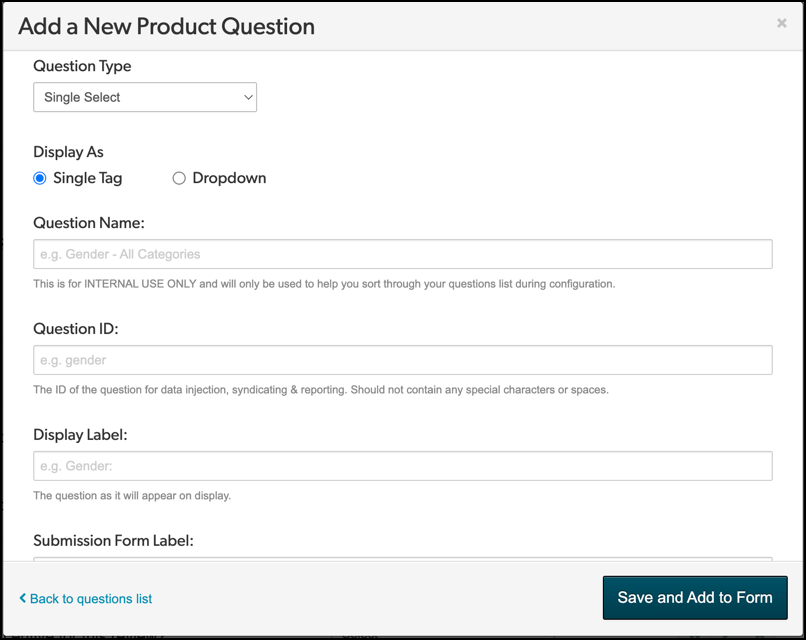
Question Type—(all questions) Types of responses a reviewer can make for a given question.
-
Single Select—(people and product questions) Contributors respond with only one answer from the list of values you provide.
Note: The Single Select question type renders as a button on a mobile device. -
Display As—(people and product questions) Enables you to display the following question types:
- Single Tag—Enables consumers to select one value from the listed tags.
- Dropdown—Enables consumers to select an option from the drop-down menu.
-
Ratings—(ratings questions) Contributors express sentiment about one aspect of the product or service on a five-point scale.
-
Slider—(ratings questions) Contributors rate a product or service on a continuum instead of by numeric rank. They supplement overall ratings by providing a richer rating level for a product. Sliders can reduce returns by 5 to 15 percent.
The following image shows a slider similar to what you would find on a submission form or published review.
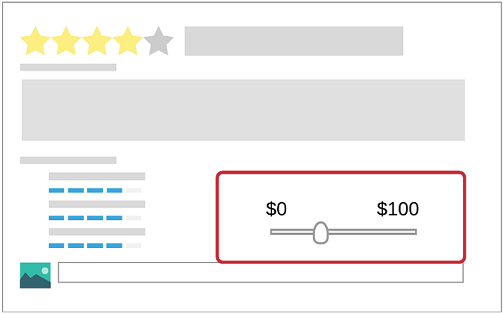
Examples of industries that benefit greatly from having sliders include apparel, shoes/footwear, cosmetics, sports and outdoors stores, and department stores. Sliders enable product reviews to have descriptions such as "Runs narrow," "Fits correctly," or "Runs wide."
-
Multiselect groups—(product questions) Contributors tag a product or service with descriptors you provide, and multiselect group enables contributors to add commonly expressed opinions or information to their reviews. Consumers can derive useful information from the tags quickly. For example, if your product is a digital camera, you could add the tag category "Digital Camera Pros" and provide tags like "Long battery life," "Compact," and "Included lens."
-
Free text—(product questions) Reviewers write comments about a product or service.
Question Name—(all questions) Descriptive, unique name for internal use that helps you identify the question in the questions list during configuration.
Question ID—(all questions) The ID of the question for data injection, syndication, and reporting. This ID should not contain any special characters or spaces.
Display Label—(all questions) Text displayed on the published review that prefaces the response value the contributor provided.
Submission Form Label—(all questions) Request for information from the contributor. The Submission Label text displays on the review submission form.
Possible Answer Values—(people, slider, and product questions) Options contributors select when responding to the submission form question. To edit existing values for default questions, select inside the value box to make it editable. To add more values, select Add new value.
Left Label—(slider questions only) Leftmost label on a slider.
Right Label—(slider questions only) Rightmost label on a slider.
Global question settings
Watch this short video to see an overview of the global question settings:
The following global question settings are available. During onboarding, these settings are configured as best practices.
-
Required—(all questions) Requires contributors to respond to the question.
Note: Don't select this option if you use data injection to populate the answer.
- Hide in display—(all questions) Prevents the answer to this question from displaying on the published review.
-
Filterable—(people questions) Enables consumers to filter reviews based on the Values you set.
- Hide on submission—(people and product questions) Prevents the answer to this question from displaying on the submission form. Answers to these questions are populated using data injection.
- Subject ID required—(people and product questions) Requires the subject ID for a product to be injected into the review submission.
