The Verified Purchaser badge verifies that the person leaving the review definitely bought the product directly from your site.
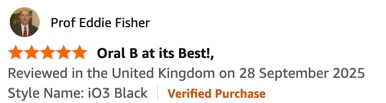
Bazaarvoice uses a user token (User Authentication String) as a digital proof of purchase to confirm the authenticity of the review.
How the Verified Purchaser badge works
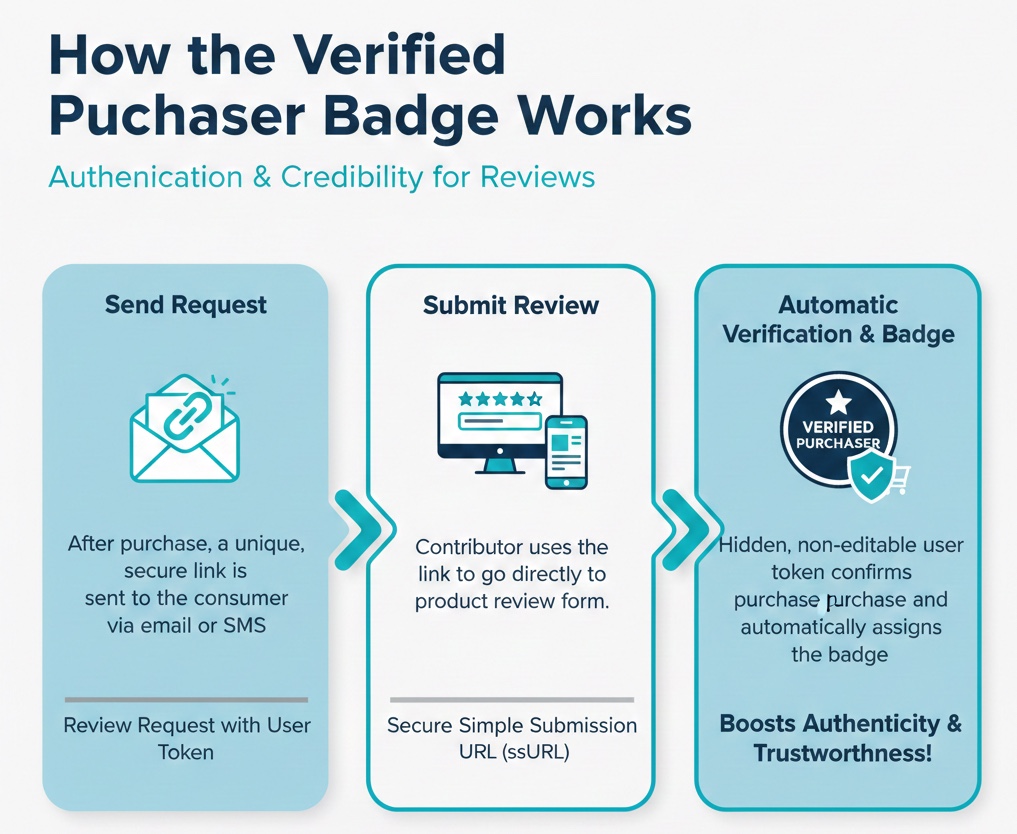
The Verified Purchaser badge is a token-based badge that is automatically assigned to a contributor, confirming they purchased the product from your site.
The standard review requests workflow process is as follows:
- Send request: After a consumer purchases a product, a review request email or text message containing a secure unique link is sent to the consumer.
- Submit review: When the reviewer selects the link within the review request message, they’re taken directly to the product review form.
- Automatic verification: The link and resulting form submission contains a hidden, non-editable user token (user authentication string) that automatically identifies the person as a verified purchaser.
Ensuring authenticity
The entire process relies on the user token contained within the secure simple submission URL (ssURL) link; the user token acts as the digital proof of purchase.
This system ensures:
- Authentication: The secure link confirms the contributor purchased the product from your site.
- Automatic badge assignment: This purchase verification automatically assigns the badge, marking the review as authentic and significantly boosting its credibility and trustworthiness.
Legal compliance
The Verified Purchaser badge is assigned through Bazaarvoice's secure submission process, primarily using our official hosted review forms and review request links (email/SMS).
Policy note: Although the badge can technically be applied using the API the current legal and audit mandate requires the use of the hosted submission forms or review request (email/SMS) for official badge verification.
We recommend this workflow for the following reasons:
- Proof of purchase: It’s mandatory to use a user token to earn this badge. The user token serves as the digital proof of purchase and is the foundation for verification.
- Audibility and compliance: This strict, closed workflow is required to ensure review authenticity and provide the necessary auditable proof. This is critical for mitigating legal risk and complying with consumer protection laws regarding review transparency.
 submission and site authentication to designate this badge, current legal and audit mandates require reviews to come through the hosted forms or official review request channels for valid badge verification.
Displaying the Verified Purchaser badge
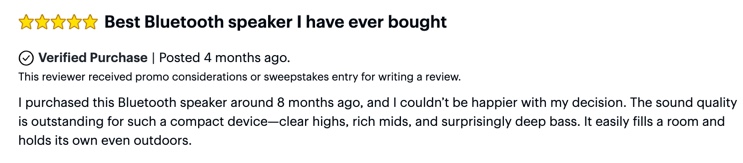
The verified purchaser badge is a contextual badge, tied to the specific review it verifies, rather than a contributor-level badge, which follows the reviewer's profile across all their reviews. Display it in close proximity to that review.
Implement the Verified Purchaser badge
Complete the following steps to implement this badge:
- Step one: Switch on the Verified Purchaser badge toggle.
- Step two: Generate a simple submission URL (ssURL) using the Submission Link Generator tool.
- Step three: Create and append a user authentication string (user token) to the ssURL link.

Step one: Enable the Verified Purchaser badge
- Sign in to Bazaarvoice Portal.
- Select your instance.
- From the upper-right corner, select the settings icon
 .
. - Select Ratings & Reviews
- Go to the Implementations section and select Edit next to the Implementation you want to configure.
- In the left-hand menu, select the Badge Editor.
- Under Token-based Badges, locate the Verified Purchaser row and turn on the toggle switch.

- (Optional) Select Edit to customize the Verified Purchaser badge. Learn more about styling badges.
- Deploy any changes changes to your site implementation.
Step two: Generate a simple submission link (ssURL)
|
Submission Link Generator tool
|
|---|

To generate a simple submission URL:
- Sign in to Bazaarvoice Portal.
- Select Access the Support Community link.
- From the Support Community navigation menu, select ssURL tool. The Submission Link Generator tool appears.
- To generate your submission form URL link, configure the following settings:
Field Example Purpose Display Integration Select which hosted display platform you’re using.
• v1
• v2 (default)
The latest hosted display version is v2. If unsure, contact your Bazaarvoice representative. Environment Select
• Staging (default)
• Production
Select Production to create a public (live) ssURL link.
Client instance Example: EnduranceCycles Enter the instance name exactly as it is listed in the Portal. Special characters must be URL-encoded. Deployment zone ID Example: main_site Typically, main_site is the ID for your main implementation Site ID. Find your live site ID. Special characters must be URL-encoded. Locale Example: en_US If you’re not using US English (en_US), enter the correct locale code. Contact Bazaarvoice Support if you’re not sure what locale code to enter. bvaction • Normal submission (default)
• Generic review submission - product picker
• Normal submission refers to a review submission form. Enter a single product ID from your product catalog.
• Product picker refers to multiple product reviews.
Campaign ID
Not required for Verified Purchase badge.
May be required for reporting purposes.
From the Results section, copy and paste the generated ssURL into your review request email or text message.
ou must now create and attach the user token or User Authentication String (UAS), to the end of the generated ssURL. Refer to Step three.
Examples of single-product ssURLs
Step three: Create a user authentication string (UAS)
The user authentication string (UAS) is also referred to as a user token. Refer to the API documentation for the API method.
To create and append a user token:
-
Create a user authentication string (user token).
Here’s the minimum parameters required for a user token.
Parameter
Purpose
date
The date the token was generated. This is required for validation.
userid
A unique identifier for the user.
Important: This can be any unique internal value (like reviewer ID) but must not be the user's email address. The Bazaarvoice platform does not store email addresses as they are personally identifiable information (PII).
email address
The email address of the user who made the purchase.
maxage
Number of days before the UAS token expires, counted from the dateparameter. If omitted, defaults to 1 day.
Increasing this value is useful for pre-authenticated URLs, such as those used in email campaigns (example:maxage=30). Bazaarvoice recommends a maximum of 365 days (example:maxage=365).
subjectid(s)
The unique identifier(s) for the product(s) the consumer purchased.
verifiedpurchaser
A True flag confirms the reviewer bought the product.
date=20240111&userid=caroline12345&emailaddress=example@test.com&maxage=365&subjectids=product1/product2&verifiedpurchaser=True
- Append the user authentication string (user token) to the end of the ssURL that you generated in Step two: Generate an ssURL.
- Embed the ssURL in the review request email or text.
Important notes
- The parameter name
vertifiedpurchaserin the user token must be all lowercase. - The assigned value confirming verification must be
True(with a capital "T"). For example:verifiedpurchaser=True - The subjectid(s) included in the user token must exactly match the product ID (ssURL) of the item being reviewed.
- This badge will not appear if there is any mismatch between these product ID and the subject ID.
Example of single-product ssURL
The following URL provides the format for a pre-authenticated submission link for email or text reviews:
Site authentication and UAS tokens
Client-side site authentication requires users to sign in to your site’s own authentication system.
Generate and include the UAS token
The primary goal is to include the UAS (User Authentication String) token on any pages where you have Ratings & Reviews integration code such as your product pages. The method for including the user token depends on which Bazaarvoice (BV) file you've implemented:
If you use the BV Loader (
bv.js): Set up integration code to include the generated UAS token within a<meta>element in the page's<head>section.If you use the Scout file (
bvapi.js): Set up integration code to include the generated UAS token within the$BV.configure()function call instead.
Set token expiration
Use the maxage key-value within your integration code to set the number of days before the UAS token expires.
Learn more about site authentication.
Find your live site ID
Follow these instructions to identify your deployment or implementation site ID.
- Go to any Product Display Page (PDP) on your live site.
- Right-click anywhere on the page and select Inspect from the context menu. This will open the browser's developer tools.
- Ensure the Elements tab is active to view the page source code.
- Search for the Deployment URL: Press Command + F (Mac) or Control + F (Windows) to open the search bar within the source code panel.
- Enter the following partial URL into the search bar: HTML
https://apps.bazaarvoice.com/deployments/
- Press Enter.
- Scan the search results to find the complete
<script>tag. It will look similar to this:JavaScript<script type="text/javascript" src="https://apps.bazaarvoice.com/deployments/widgetcompanyname/main_site/production/en_GB/bv.js"></script>
