The Product display page v2 provides advanced feature capabilities that helps you to customize the display of user-generated content (UGC) on your website. Watch this short video to learn how consumers submit ratings and reviews for products on your website. If you require a descriptive transcript for this video, it's available in our video platform.
Read the following sections to understand the major features in v2 display and how to enable these on your website:
- Major features in v2 display
- Before you begin
- Migrate from v1 to v2
- Enable v2 Ratings & Reviews and single product submission
- Enable v2 Questions & Answers
- Common questions
Major features in v2 display
Enhance review quality and submission rate with Talk-to-Text
- Offer a fast, hands-free review submission experience.
- Capture deeper, more natural language insights from consumers' spoken feedback.
- Reduce friction in the submission process to increase review volume and completion rates.
To learn more about Talk-to-Text review submission, refer to Talk-to-Text review submission. To enable this feature, refer to Review Submission under Configure options for Ratings & Reviews.
Enhance purchase confidence with consumer-uploaded videos
- Allow consumers to create and upload videos that highlight their experiences with your products—creating using the mobile app, uploading from their gallery, or sharing YouTube links.
- Display consumer-uploaded videos alongside written reviews in the review carousel, giving shoppers an authentic, visual representation of product use, quality, and the user’s experience of the product.
- Help potential buyers make informed decisions by showcasing your product in action and sharing how other consumers have used it.
Refer to Common questions to learn more about video upload requirements and supported formats. To learn more about consumer-uploaded videos, refer to Upload native and YouTube videos to reviews. To enable and configure video uploads, refer to Configure options for Ratings & Reviews.
Watch this short video to learn how to create and upload a product review video. If you require a descriptive transcript for this video, it's available in our video platform.
Optimize purchase decisions with AI-generated review summary
- Provide an AI-generated summary of the product’s English-language reviews on the product page.
- Provide consumers a concise summary that highlights the key values, opinions, and sentiments from a large number of reviews.
- Summarize the most important insights from other consumers, making it easier for new consumers to make informed purchase decisions
Refer to Common questions to understand the review summarization process, data security, and accuracy metrics. To learn more about AI-generated review summary, refer to Review summary. To enable and configure AI-generated review summary, refer to Configure options for Ratings & Reviews.

Enhance user-generated review content (UGC) with Content Coach
- Enhance the quality of consumer reviews with the new AI-powered review guidance feature.
- Provide custom prompts to help consumers focus on key topics about the product.
- Collect more detailed, relevant, and valuable reviews.
Enhance insights through photo-first reviews
- Improve the visual content experience by adding images from all reviews into a single carousel for consumers to easily navigate photo-to-photo.
- Displays reviews with the uploaded images for consumers to select each image in the carousel to have more details.
- Navigate to all images using the navigation arrows in the user modal.
To learn how to enable this feature, refer to Choose what is displayed.
Customize locale-specific review sorting
- Sort reviews by region.
- Sort reviews by language.
- Sort reviews by region & language.
To learn more, refer to Sort by Regional.
Progressive edit and submission of reviews
- Allow consumers to resubmit reviews progressively.
- Enable consumers to edit their previously submitted reviews within 30 days.
Refer to Submission form examples to see a submission form example that allows consumers to edit and resubmit the reviews.
Translation of content on your website
- Enable consumers to translate and share reviews, questions, and answers among your website’s locales.
- View localized translation of the content.
To enable and configure content translation, refer to Enable and configure content translation.
Enhancements in v2 display
- Inline ratings with zero reviews. To learn more about the product listing pages with and without ratings, refer to Why are inline ratings important.
- Reviews with product level attribution statement on syndicated reviews. To learn more about the statement, refer to Reviews.
Before you begin
- Use hosted Ratings & Reviews display.
-
Implemented BV Loader (bv.js). If you use Q&A, you must understand and validate potential performance impacts first.
Note: This feature is not visible in the Style Editor by default.
Migrate from v1 to v2
Implement the BV loader file (bv.js) for performance improvements and future innovations. You must contact Bazaarvoice Support to enable the v2 features. The code for these features will not work if Bazaarvoice Support does not enable them.
| Step 1 | Step 2 |
|---|---|
|
Add the BV loader
The BV loader is a small, asynchronous JavaScript application that manages and displays configured features and UGC on your web pages. The BV loader will only download the required applications requested on the specific page. To learn more, refer to Add the BV loader. |
Add code to the page where UGC is displayed
To learn how to integrate the v2 application and add code for different applications on the PDP, refer to Add Bazaarvoice code to your site. |
Enable v2 Ratings & Reviews and single product submission
Contact Bazaarvoice Support to enable the v2 features in the Edit a Client's Record page. This video shows how to configure the v2 display.
-
Sign in to the Bazaarvoice Portal
 .
.
-
From the upper-right corner, select the settings icon
 .
. - Under Configuration, select Ratings & Reviews. The Site Manager lists all your active deployment zones and implementations.
- Under Implementations, select Edit next to the implementation you want to configure.
- Under the User Experience section, select Style Editor.
-
Turn on the ON toggle switch to the right of Rating Summary v2 and Reviews v2.
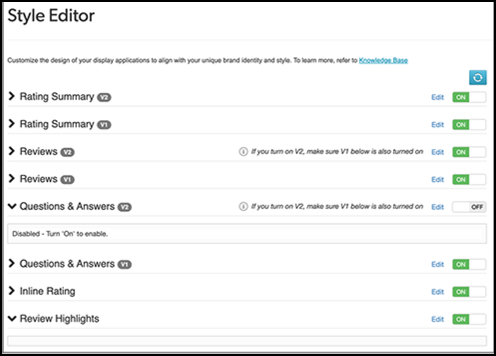 Note: To display the v2 implementation, you must also turn on the toggle switch to the right of the v1 feature.
 - Select Preview Site on the top right corner of the Style Editor to preview the changes in the Reviews and single-product submission form.
- Deploy and test your changes in the staging or testing environments and then publish to the production environemnt.
Disable v2 Reviews and single-product submission
To disable v2 display features on your website, perform the following:
-
Sign in to the Bazaarvoice Portal.
-
From the upper-right corner, select the settings icon .
- Under Configuration, select Ratings & Reviews. The Site Manager lists all your active deployment zones and implementations.
- Under Implementations, select Edit next to the implementation you want to configure.
- Under the User Experience section, select Style Editor.
-
Turn off the ON toggle switch to the right of Rating Summary v2 and Reviews v2.
Note: You must have the Reviews v1 toggle switch turned on.
- Re-deploy the implementation.
Enable v2 Questions & Answers
Required parameters
| Parameter | Description |
|---|---|
client_name
|
Client name provided by Bazaarvoice. Use lowercase letters. |
site_ID
|
ID of the deployment zone you want to use.
|
environment
|
Deployment environment where you want to implement BV Pixel.
|
locale
|
Locale used by your BV Pixel implementation. If you're not using US English (en_US), ensure use the correct locale code. |

To deploy these changes into your production environment, do the following:
-
Sign in to the Bazaarvoice Portal.
-
From the upper-right corner, select the settings icon .
- Under Configuration, select Ratings & Reviews. The Site Manager lists all your active deployment zones and implementations.
- Under Implementations, select Edit next to the implementation you want to configure.
- Under the User Experience section, select Style Editor.
-
Turn on the ON toggle switch to the right of Questions & Answers v2.
Note: To display the v2 implementation, you must also turn on the toggle switch to the right of the v1 feature.
- Select Edit to configure the display components.
- Select Preview Site on the top right corner of the Style Editor to preview the changes in the Reviews and single-product submission form.
- Deploy and test your changes in the staging or testing environments, and then publish to the production environment.
Common questions
Ratings & Reviews and in-page submission
Does the star rating on the product detail page (PDP) get saved if the user does not complete the subsequent submission form?
No. Bazaarvoice does not record a rating until the user completes all required fields in the progressive submission form and select Submit.
If review collection is turned off and the rating stars are disabled, does the review summary section get centered on the display?
No, the review summary section stays left-aligned.
Can the clickable star icons in the new product detail page (PDP) review display be configured to show a gradient (red to green) like the review form currently does?
No. Bazaarvoice doesn't have plans to implement a color gradient for the rating star icons in the new PDP review display at this time. Instead, we provide helper text to explain the meaning of the stars. For example, selecting fifth star shows 5 out of 5 stars selected, product is Excellent right below. Generally, having this text is a more accessible solution than using a red/yellow/green gradient. It also helps maintain the brand colors and user experience.
Can I rearrange the questions within the progressive submission form?
Yes. You can move questions into the first step of the progressive submission form by marking them as required. Otherwise, the form is designed to capture the core parts of the review in the first step and allows consumers to provide additional details in subsequent steps.
Enable v2 display
Do existing clients need to enable the new reviews display?
Yes. For details, refer to Enable V2 Ratings & Reviews and single product submission.
We won’t automatically enable the new display for clients. Instead, we want to offer them the chance to test the experience before deployment.
Can new clients easily adopt the new reviews display?
Yes. New clients will be automatically set up with the V2 version of the reviews display.Can I replace the star rating buttons with the Write a Review button from the legacy reviews display?
No. We will be replacing the Write a Review button with star rating buttons, as they drive more consumer engagement and result in more reviews collected. You can manage the submission of the form through the config hub.
If you choose to disable the submission, you have two options, both of which require additional effort:
- Create a custom button: You can generate an ssURL and transform it into a button on your website. This button can be product-specific and positioned near the review display on the product page.
- Use a hybrid approach: If you are an Enterprise client, you can use API submission to create the button or form for onsite reviews while continuing to use Bazaarvoice's hosted solution's display JavaScript.
However, these options are not recommended. Our in-page submission feature typically doubles the number of organic reviews collected from product pages by directly engaging users and collecting star ratings from the PDPs, thus eliminating additional steps for consumers.
Will the new reviews display be applied to submission forms accessed through an ssURL?
Yes. For those not using multi-product submission and directing consumers to a product or container page using an ssURL, the new V2 submission form will be displayed, provided they have upgraded their product page reviews display. If you use ssURLs, ensure that Reviews V1 remains ON in the Style Editor.
Is the new reviews display compliant with accessibility guidelines?
Yes. The new photo-first reviews display is designed to provide an accessible shopping experience by meeting a range of accessibility guidelines, including levels A and AA, for various aspects of the ratings and reviews experience.
Visual carousel
Will the visual carousel appear when combined with galleries?
Yes. Galleries are typically placed above the reviews container, creating a visual separation from the visual reviews carousel. This separation is maintained by elements such as the ratings histogram, summary information, and star buttons, which usually provide enough space between the gallery and the carousel.
Can clients who do not collect photos still use the new photo-first reviews display?
Content Coach
Does the feature provide a specific number of AI-powered topics?
Yes. The feature provides 4 or 5 AI-generated topic suggestions based on the product’s name, description, and category.
Are these AI-generated topics mandatory to include in the reviews?
No. These suggested topics provide guidance to help consumers improve the quality of their reviews. Including them in the reviews is optional, not mandatory..
Is Content Coach enabled by default?
No. It is turned off by default.
Are the suggestions based on previous reviews?
No. They are based on the product name, product description, and product category..
Does Content Coach support languages from all locales?
No. Content Coach currently supports only English-specific locales.
AI-generated Review Summary
Is there a minimum number of reviews required to generate an AI review summary for a product?
Yes. You must have a minimum of 30 approved reviews combined across English, French, German, and Spanish, regardless of the source (native, family, or syndicated), to generate the review summary and ensure a broad range of consumer feedback.
Can I see AI-generated review summaries in the Portal?
Yes. Review summaries is available on the Top consumer sentiment on my site dashboard. To access it, ensure the Review Summary flag is enabled in Configuration and then navigate to: Portal > Analytics > Ratings & Reviews > Consumer Sentiment.
Is there any additional cost for me to add AI review summaries?
No. The AI review summary is included in the conversation API at no extra cost for Advanced and Enterprise clients.
Are review summaries available immediately?
No. Review Summaries are only available upon request through your Bazaarvoice point of contact. It takes up to 4 weeks to generate the summaries after the client has been onboarded. This time frame allows for full integration of your data, system setup, and ensuring the AI model has sufficient information to create accurate and meaningful summaries.
Are summaries generated for all products?
Review summaries are generated for all active products with at least 30 approved reviews combined across English, French, German, and Spanish, regardless of the source (native, family, or syndicated) at the time of the request. Newly added products will be included in the next AI model cycle, ensuring they are regularly updated and reflected in the summarization process.
Is there a maximum word count for the summary length?
Yes. The summaries are up to 100 words in length.
Does review summarization preserve the sentiment of the original reviews?
Yes. The AI review summary model has been evaluated for relevancy and representativeness against the original product reviews. It aims to capture the overall tone of the reviews, including positive, negative, or neutral feedback. While summaries are concise and may not cover every topic in all reviews, especially for products with a large volume of reviews, we use extensive evaluation metrics to ensure the summary reflects the range of opinions of the product's consumers.
Can negative reviews be excluded while generating the summaries?
No. Negative reviews cannot be excluded. The AI model considers all displayable reviews of a product, including positive, negative, and neutral reviews. The summaries generated are based on all reviews, ensuring they are completely authentic.
Does the AI tool use all review content to generate keyword filters?
Yes. It analyzes all review content to identify themes as unbiased topics, which are then represented as filters to help consumers quickly find related reviews (e.g., "taste" for food or "texture" for beauty products). These keywords are listed in descending order based on the number of reviews in which they appear.
Can I enable summaries for specific locales only under a hosted display implementation?
Yes. Locale-level configuration is supported for review summaries. You can select which locales to enable.
If I enable review summaries, can I select the products or PDPs it applies to?
No. You cannot select specific products for the summary to display on. If the feature is enabled, it applies sitewide to all eligible products with a minimum of 30 displayable english reviews.
If I am using hosted display, can I preview AI-generated Review Summary for a product before enabling the feature in production?
Yes. You can preview the review summary in the staging environment before deploying it to production. The staging environment uses test content. However, to generate a summary based on real customer feedback for a specific product ID, use the Review Summarization API with production API keys. The results are identical in both environments, as the summary is generated based on production reviews. Ensure that the product ID has at least 30 approved reviews combined across English, French, German, and Spanish, regardless of the source (native, family, or syndicated).
Keyword filters
Is there an AI resource available that I can share with my client's internal teams (e.g., Gen AI governance board)?
Yes. You can share the Bazaarvoice Use of AI documentation, which covers our approach to security, privacy, and quality.
Does Keyword Filters support languages other than English?
Yes. The feature supports English, French, and German, with Spanish support added in Q3 FY25.
Can I configure Keyword Filters to display only on specific locales within a client site implementation?
No. Configuration is managed via ConfigHub at the implementation level and applies globally to all locales within that specific site implementation. Locale-specific enabling or disabling is not supported.
Will unsupported locales cause page performance issues or errors if the feature is enabled globally?
No. If a locale does not yet support keyword generation, the filters will simply not appear on the Product Detail Page (PDP). There is no negative impact on page performance.
Are Keyword Filters supported across all regional variants of a supported language (e.g., en_US and en_CA)?
Yes. The feature does not make a regional distinction for supported languages. If enabled, keywords will display across all locales for that language (e.g., both en_US and en_CA), provided the review volume threshold is met.
Is there a minimum number of reviews required for Keyword Filters to display on a PDP?
Yes. A product must have a minimum of 10 approved reviews written exclusively in a supported language (English, French, German, or Spanish).
Will Keyword Filters appear immediately on a PDP as soon as a product reaches 10 reviews?
No. The data pipelines that refresh the keywords run periodically (typically once every 4 weeks). If a product reached the 10-review threshold after the last pipeline run, the filters will not appear until the next automated refresh.
Are incentivized reviews included when generating Keyword Filters?
No. Keyword Filters are built on our legacy sentiment dataset which excludes incentivized content. Only native and network reviews (including product variants and intra-site syndicated content) are used.
Can I test the Keyword Filters feature in the Staging environment?
No. Keyword generation is currently not supported on staging (similar to Review Highlights). Testing must be done in production.
Does the keyword data refresh automatically every month?
Yes. The underlying Natural Language Processing (NLP) pipeline runs automatically on a monthly basis. Clients do not need to take manual action to trigger a refresh.
Can clients request to exclude specific words or manually block certain keywords from appearing?
No. Manual keyword exclusion or blocklisting is not supported at this time.
Is there a maximum limit to the total number of keywords generated for a single product?
No. There is no cap on the total number of backend keywords generated, as it depends on the themes discussed in the reviews.
